Upload Your Knowledge
Your knowledge is a key part of building your Individual AI. Upload your writing, documents, articles, and images, and connect your social accounts and websites.
The more you add, the more enriched your Human Life Model becomes, a more complete picture of what makes you, you.
Get Started
Navigate to the Knowledge Hub to begin uploading Knowledge.
First, click the Human Life Model icon on the left navigation menu. Toggle to the tab titled Knowledge.
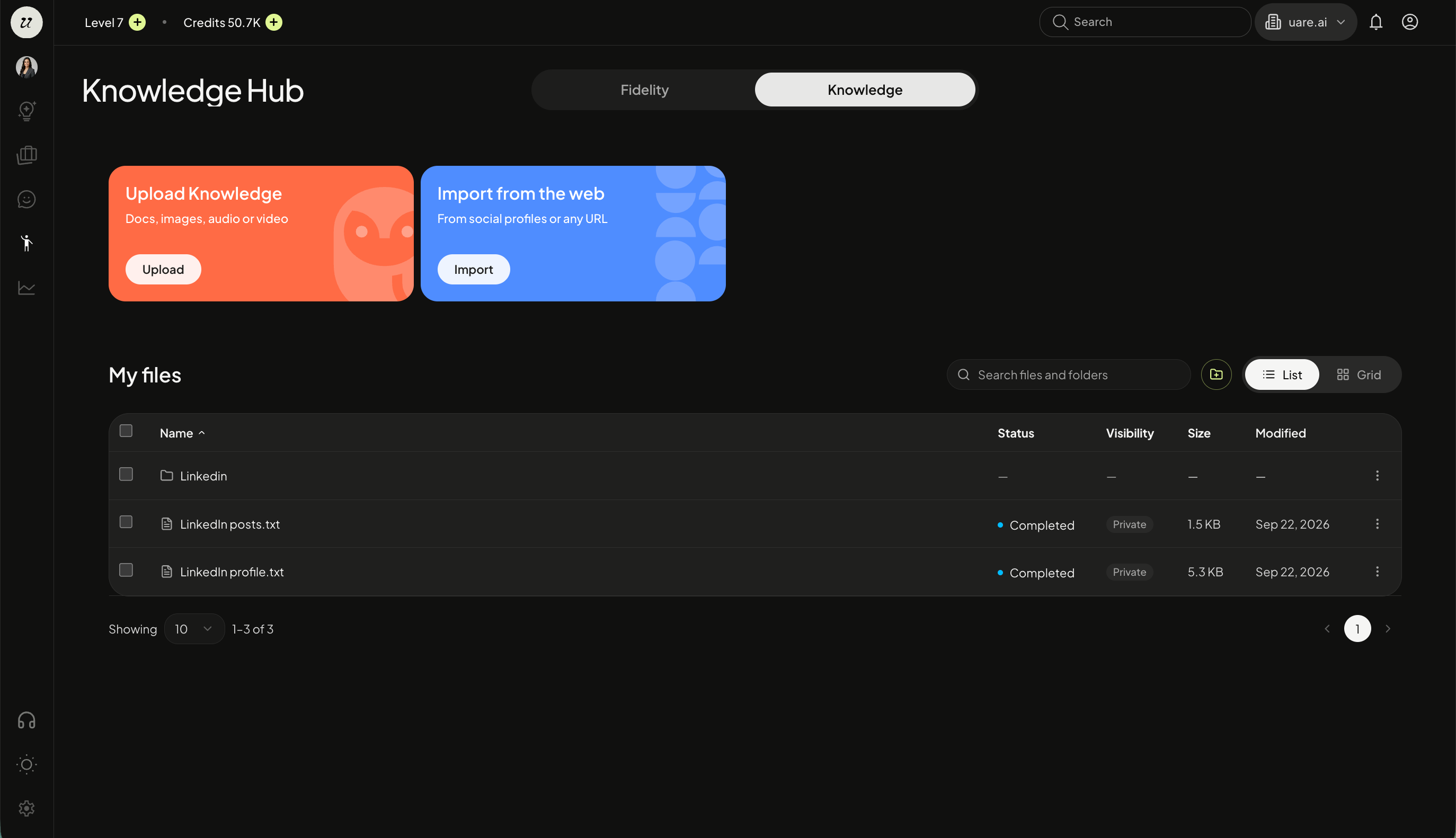
You can select either upload knowledge or import from the web to begin.
Upload Knowledge
Select upload files. Choose from upload documents or upload media (audio or video files). Select the files you wish to upload.

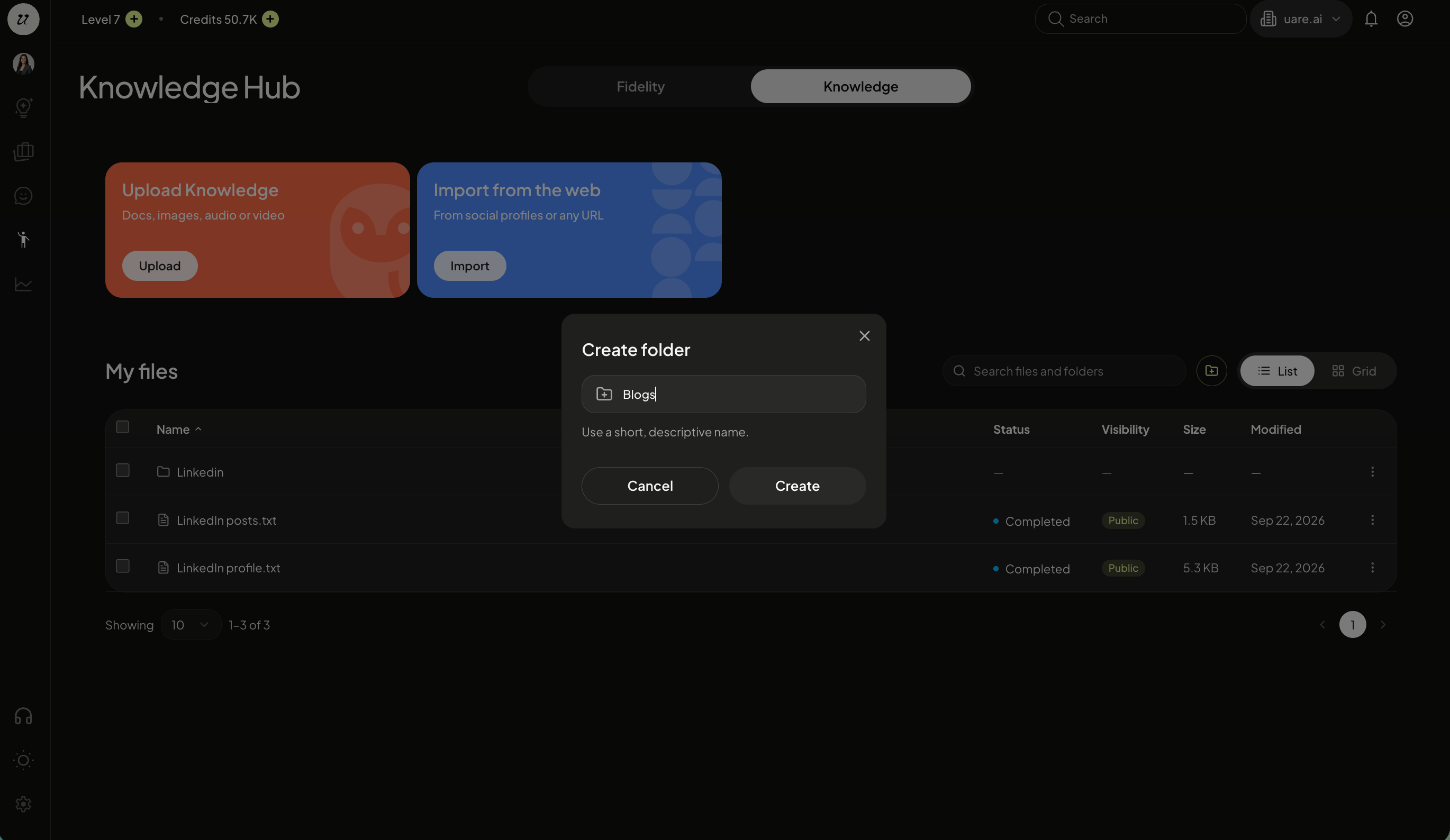
You can also organize your knowledge in folders, by selecting create folder.
Choose Visibility
After you upload each piece of knowledge, you have full control over it’s visibility.
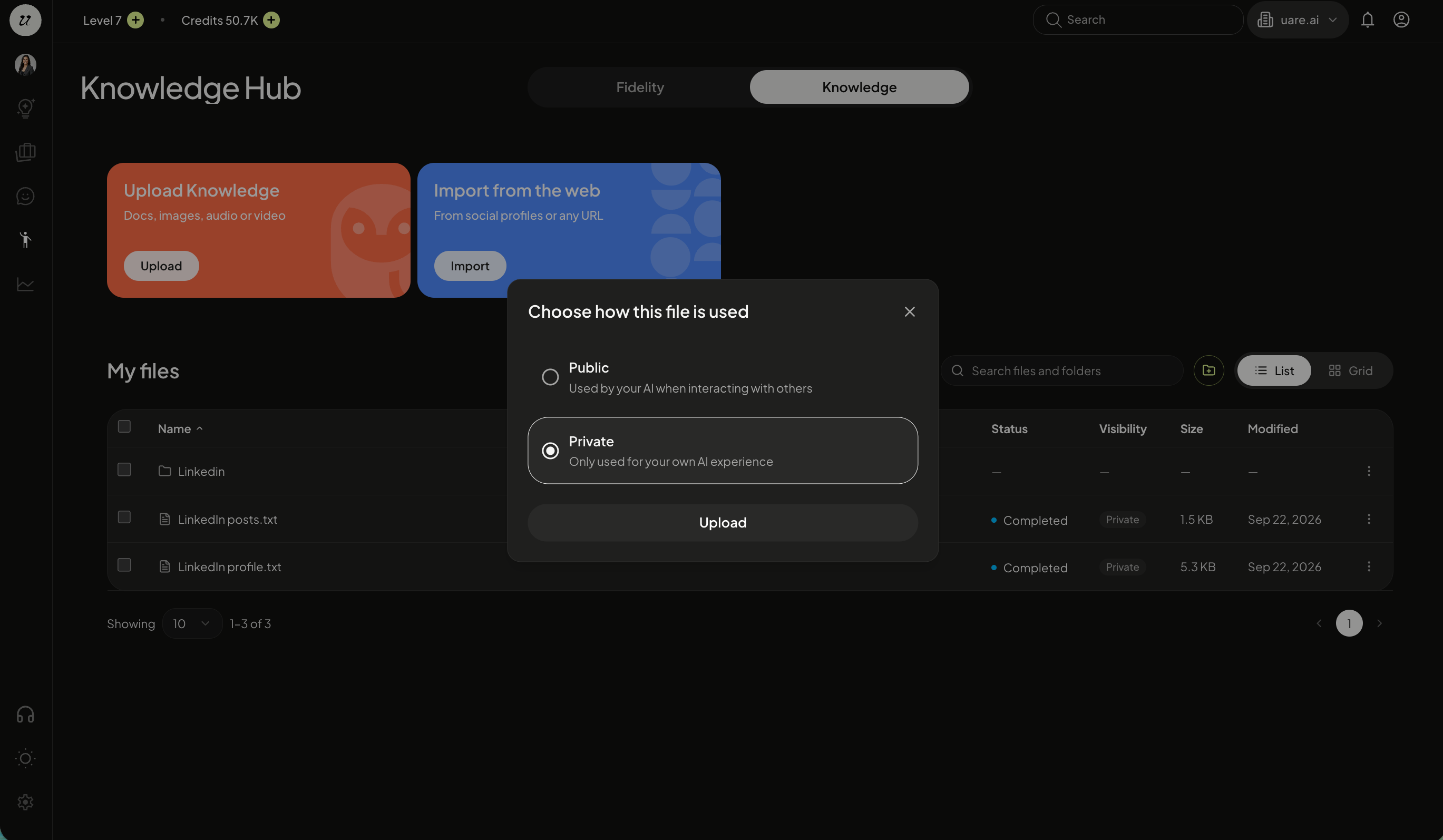
If you want others to be able to access this content when they interact with your public Individual AI, set to Public. If the content is only meant to inform your conversations with your own Individual AI, set to Private.
You can change the visibility of each file at any time. To switch visibility of an already uploaded piece of knowledge, click the three dots, and select make private/make public.

You can also open, view file, rename, move, download, make private/public, and delete at any time.
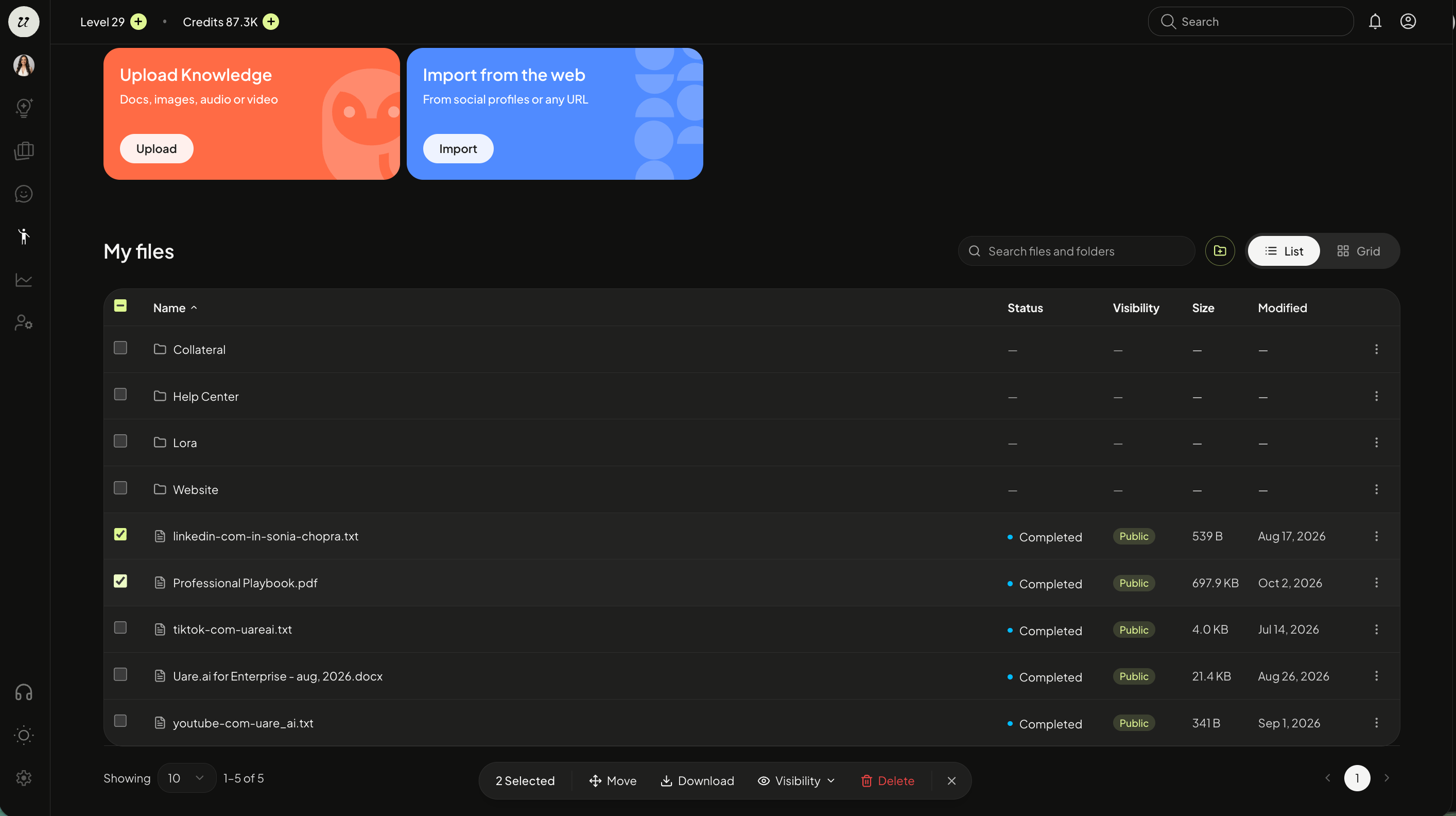
Once all imports are complete, you can view everything that's been brought in under my files.
Select multiple files and bulk move, download, change visibility, and delete.
File Organization
You are able to select create folder when uploading your data or select the folder icon next to list view toggle.
Name the folder and select create. You can upload or move specific content into the various folders for added organization.
Import Social Media Accounts
You are able to connect your social media accounts and web links to your Individual AI.
Select import from the web, click connect social accounts, and select the + sign. Input links to Instagram, Linkedin, X, YouTube, TikTok, Substack, and Medium.
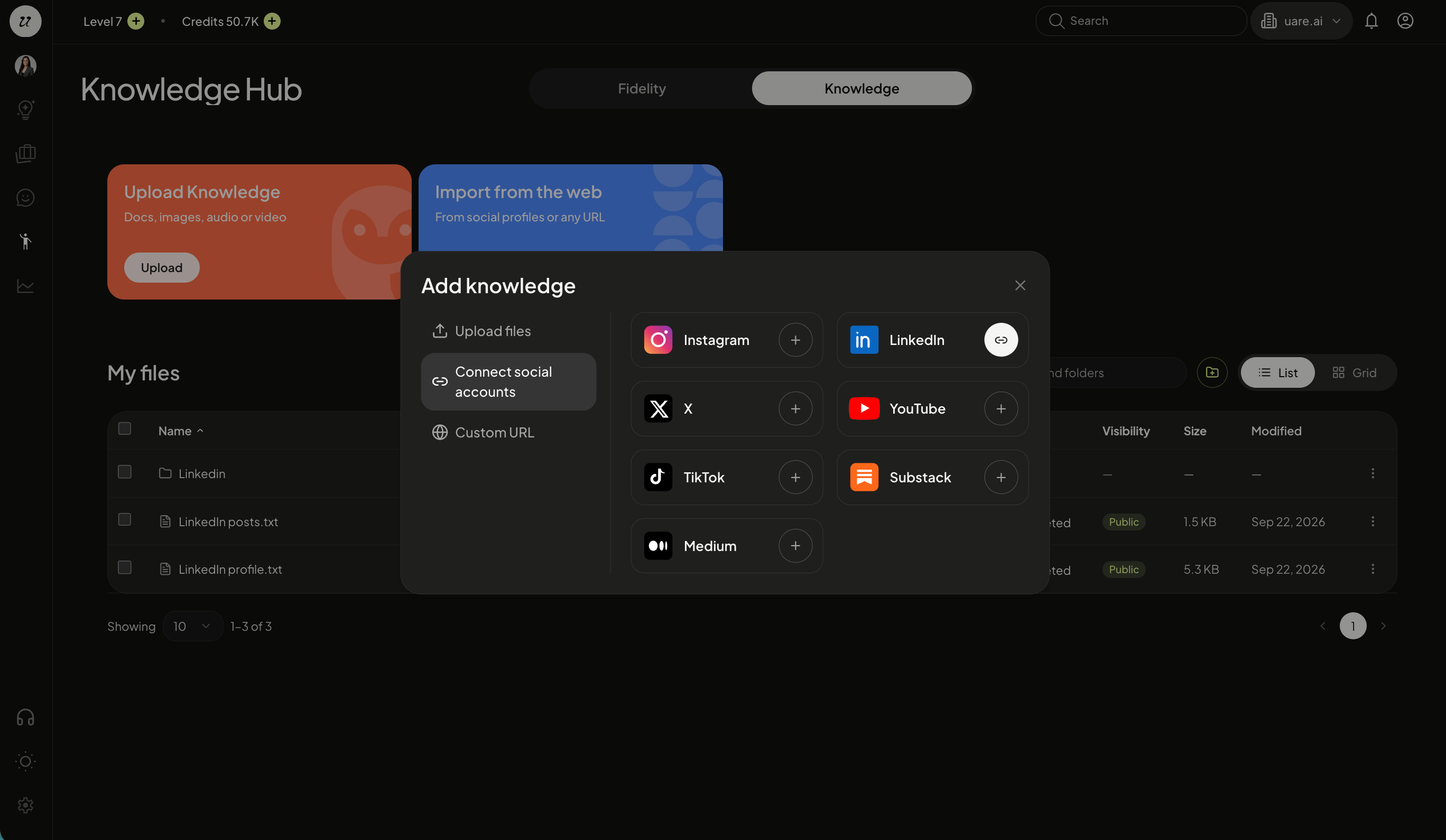
When connecting each account, it will state which pieces of data will be brought in. For example, Medium imports the 50 most recent articles from your profile that anyone can read. Member-only stories can't be imported: they stay behind Medium's paywall.
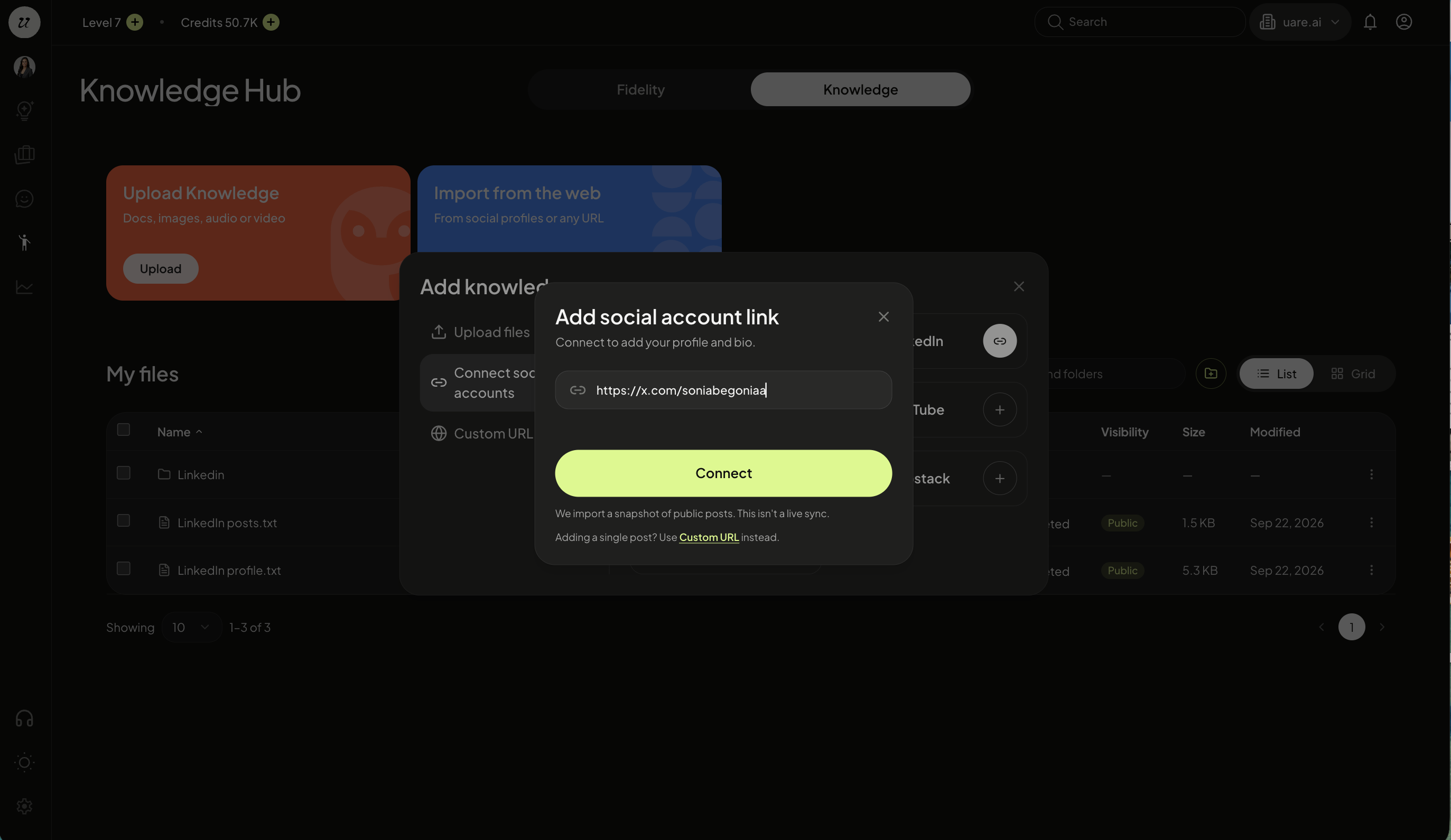
Click connect and select whether this channel should be private or public.

This usually takes about a minute. You can monitor the status under the status column. Note: This is not a real-time feed.
You will see it says completed once finished.
Repeat the process for any other platforms you want to connect.
Once all imports are complete, you can view everything in the Knowledge Hub, under my files.
View the Analysis
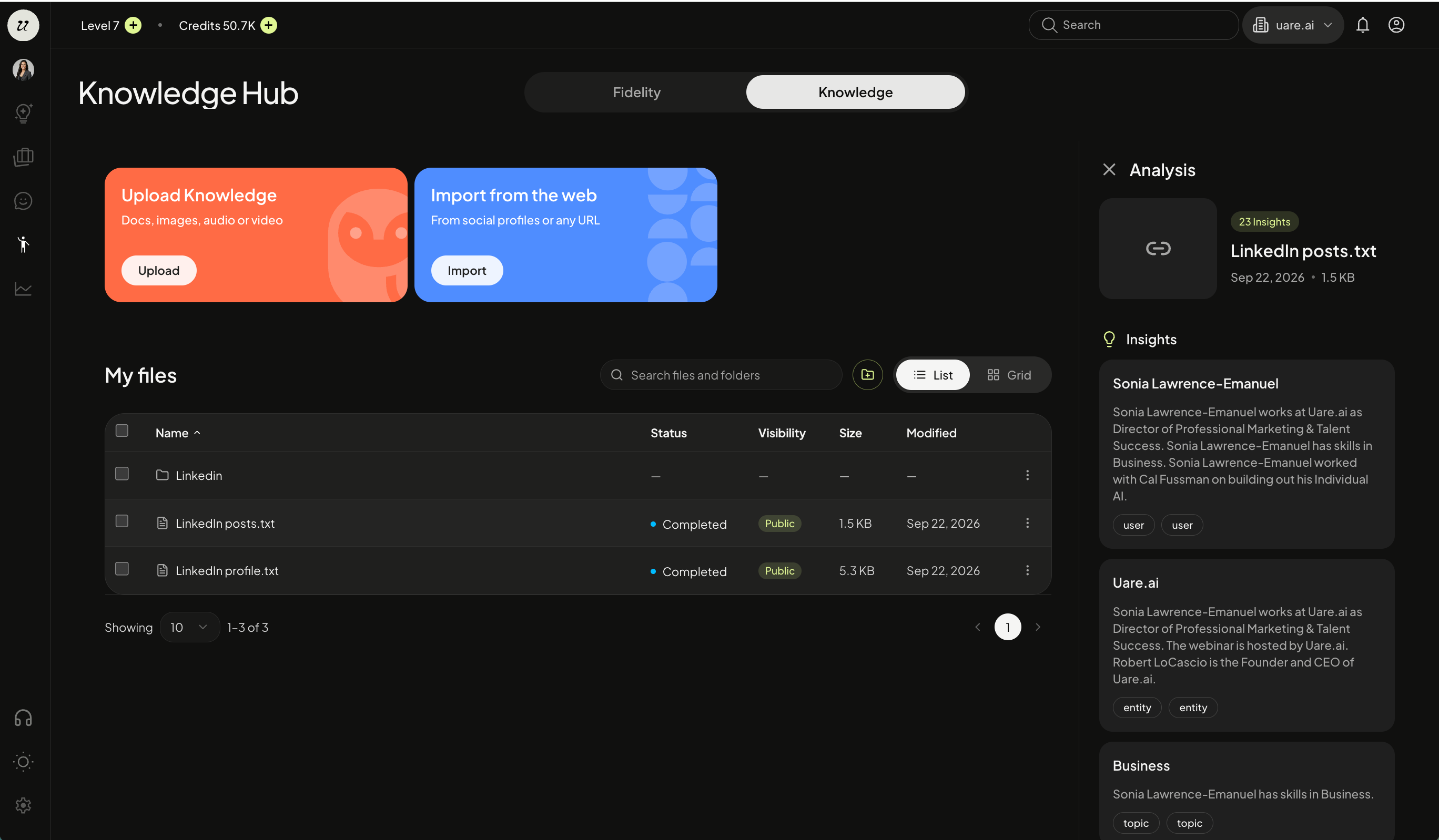
Select any of the files to open an analysis of what insights the system has extracted from that piece of content.
Still need help? Ask the team