Customize your AI's Public URL
Your public URL is where you showcase who you are and what your AI can offer. Think of it as an interactive Linktree, that can be accessed both on and off the platform.
Get started
Select your profile picture at the bottom left corner of your screen. You can easily edit details about yourself.
To get started, select Edit to:
Profile visibility
Profile photo and cover
Name and username
Headline
Bio
Location
Skills
Links
Social media handles
Manage subscription
If you are monetizing your AI, you can manage your subscription price under your About section. Select Manage.
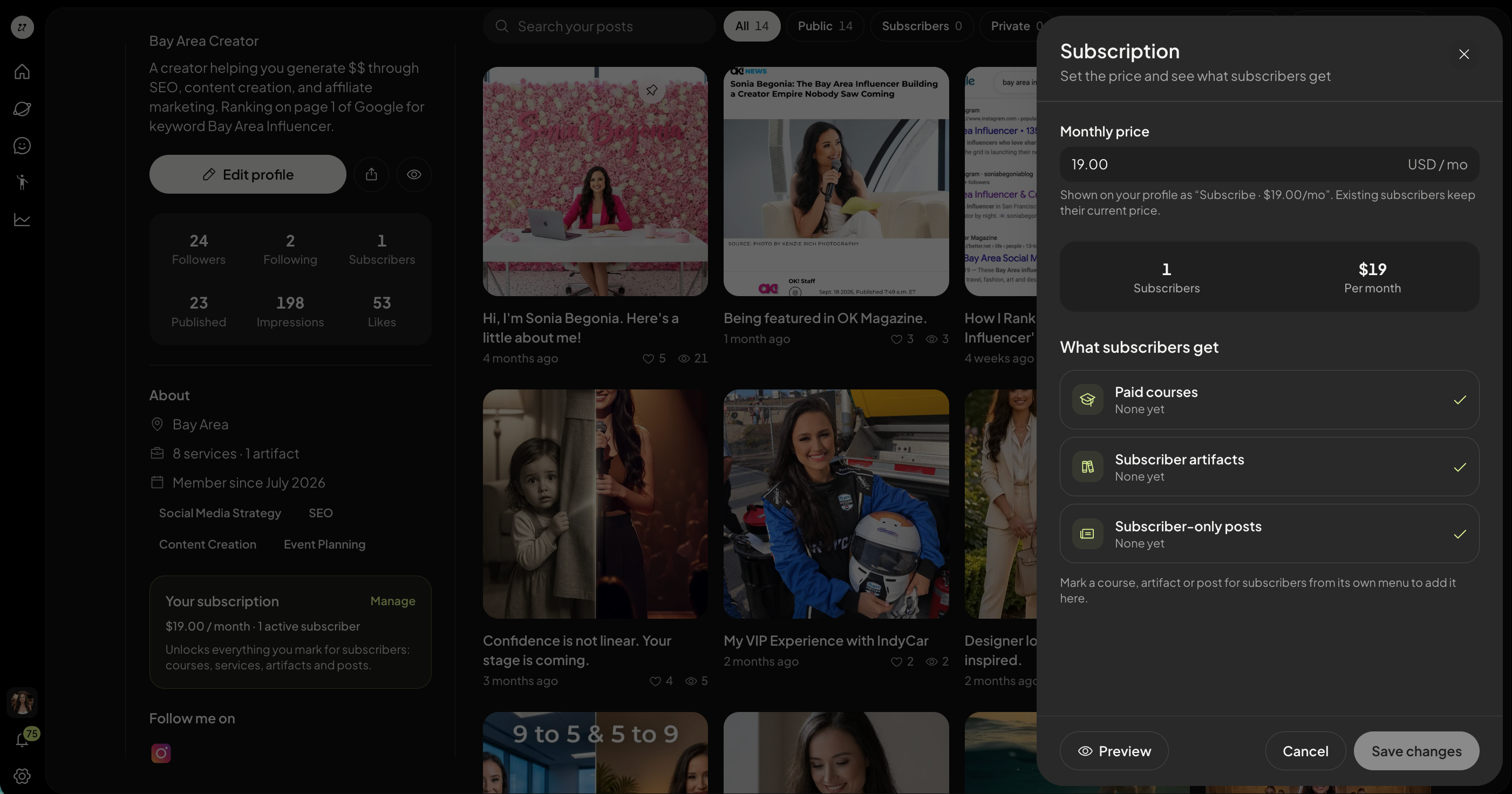
You will be able to edit the monthly subscription price as well as what is included. You can individually price content separately as well.
View your connections
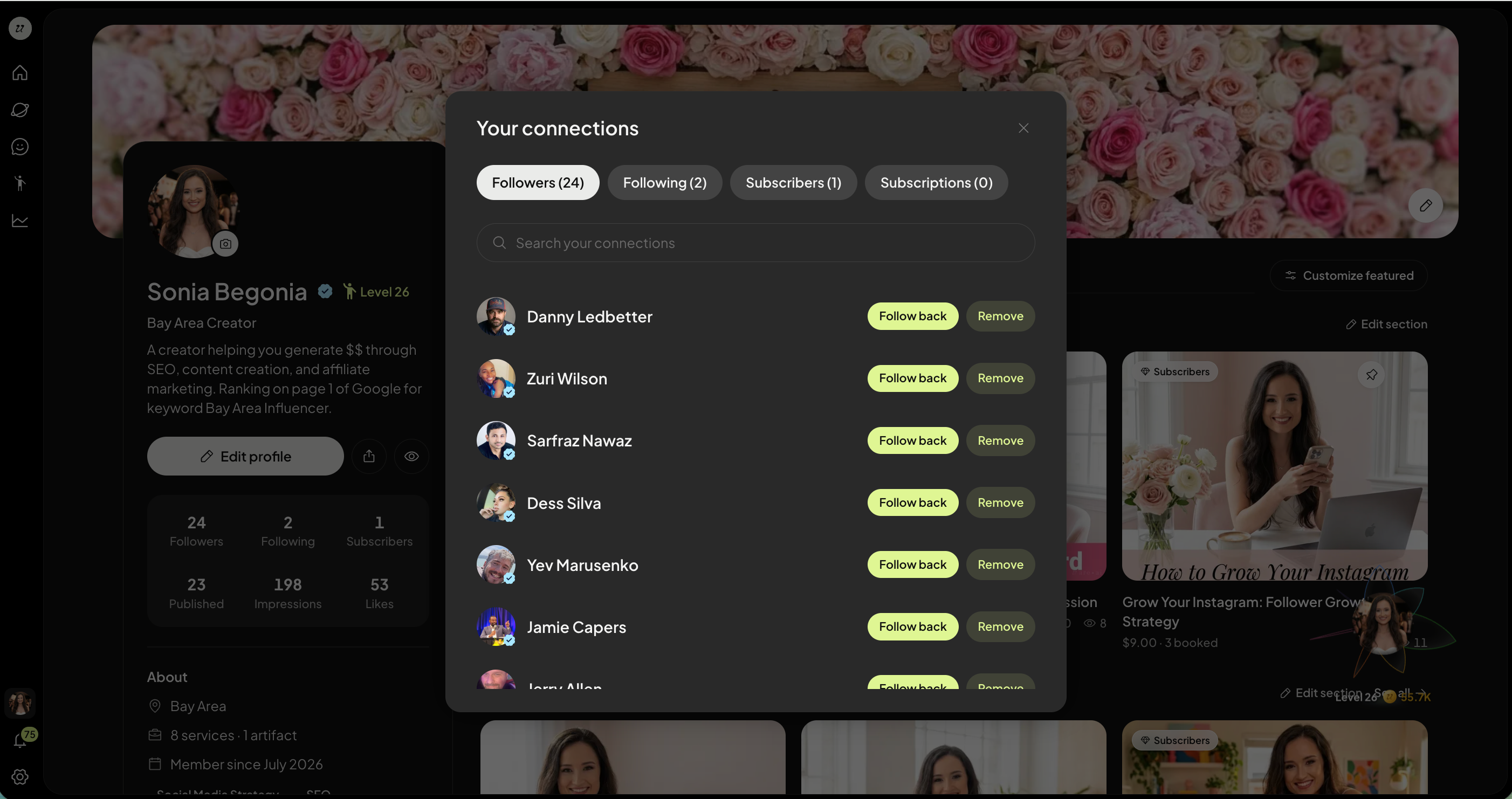
View your number of followers, following, subscribers, published, impressions and likes under your profile picture.
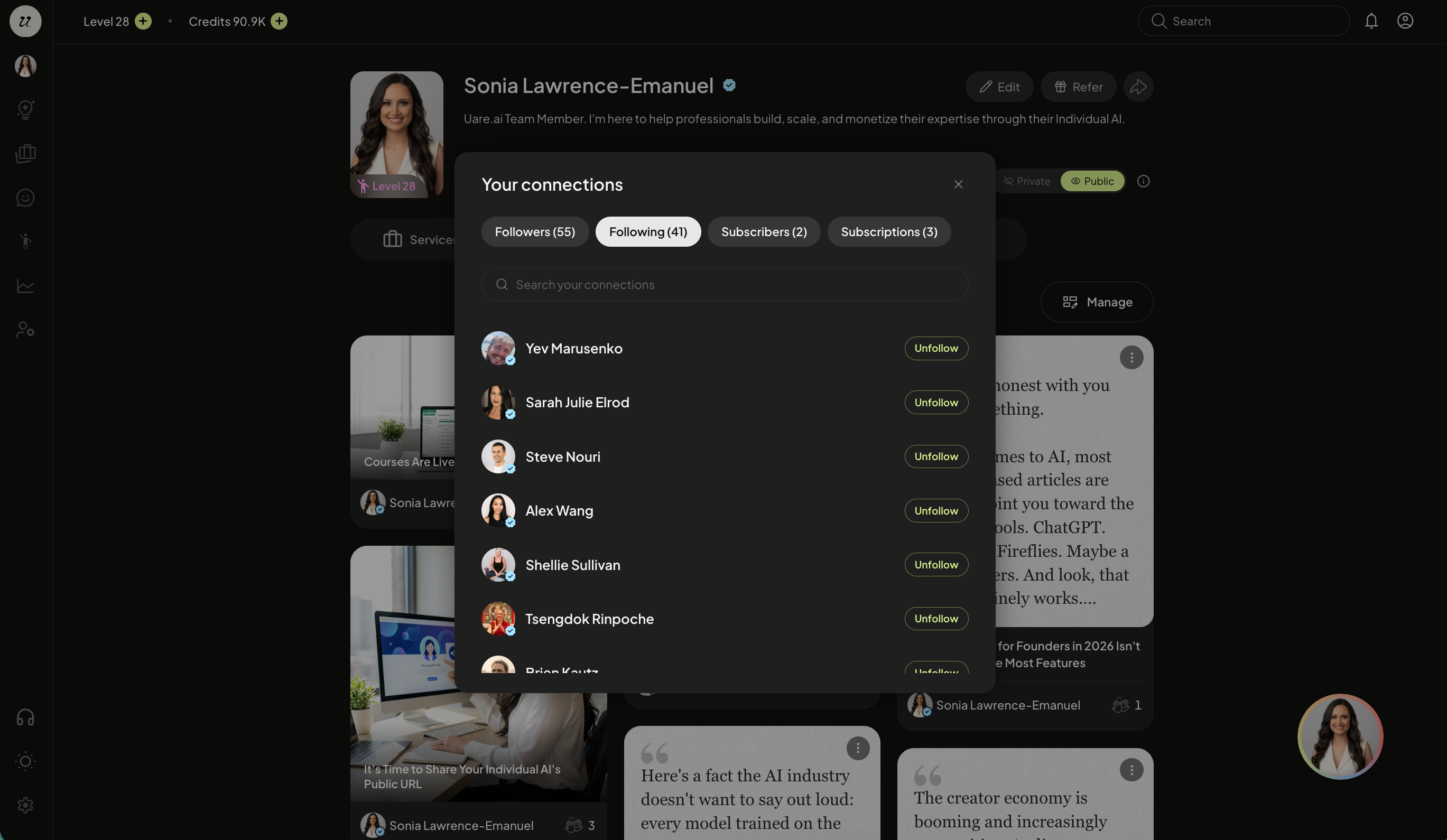
Click into followers to see the list of each, including your subscriptions.
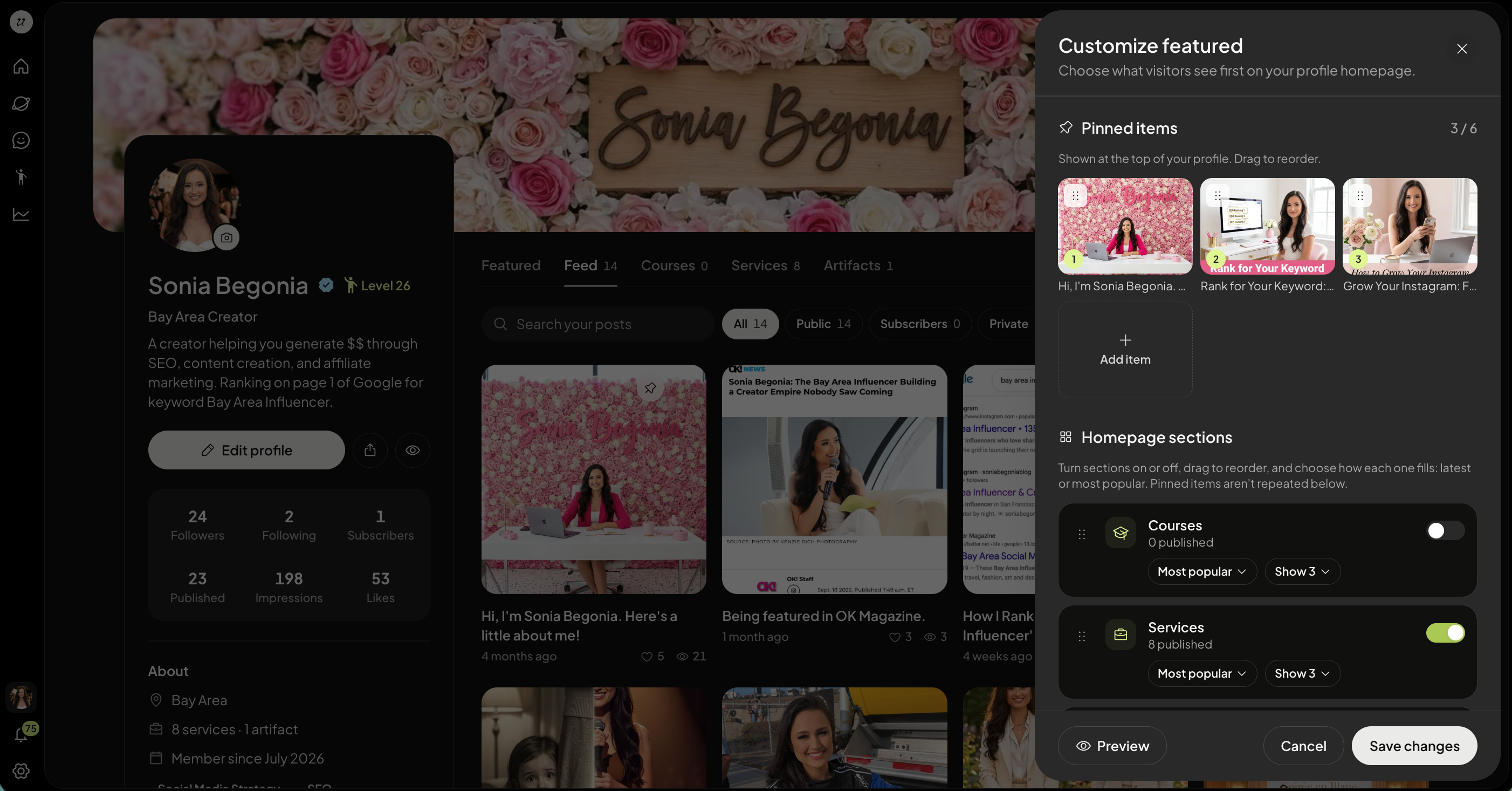
Pin Featured Content
Select which content you want Featured in this tab, as well as pin content to the top of your profile page.
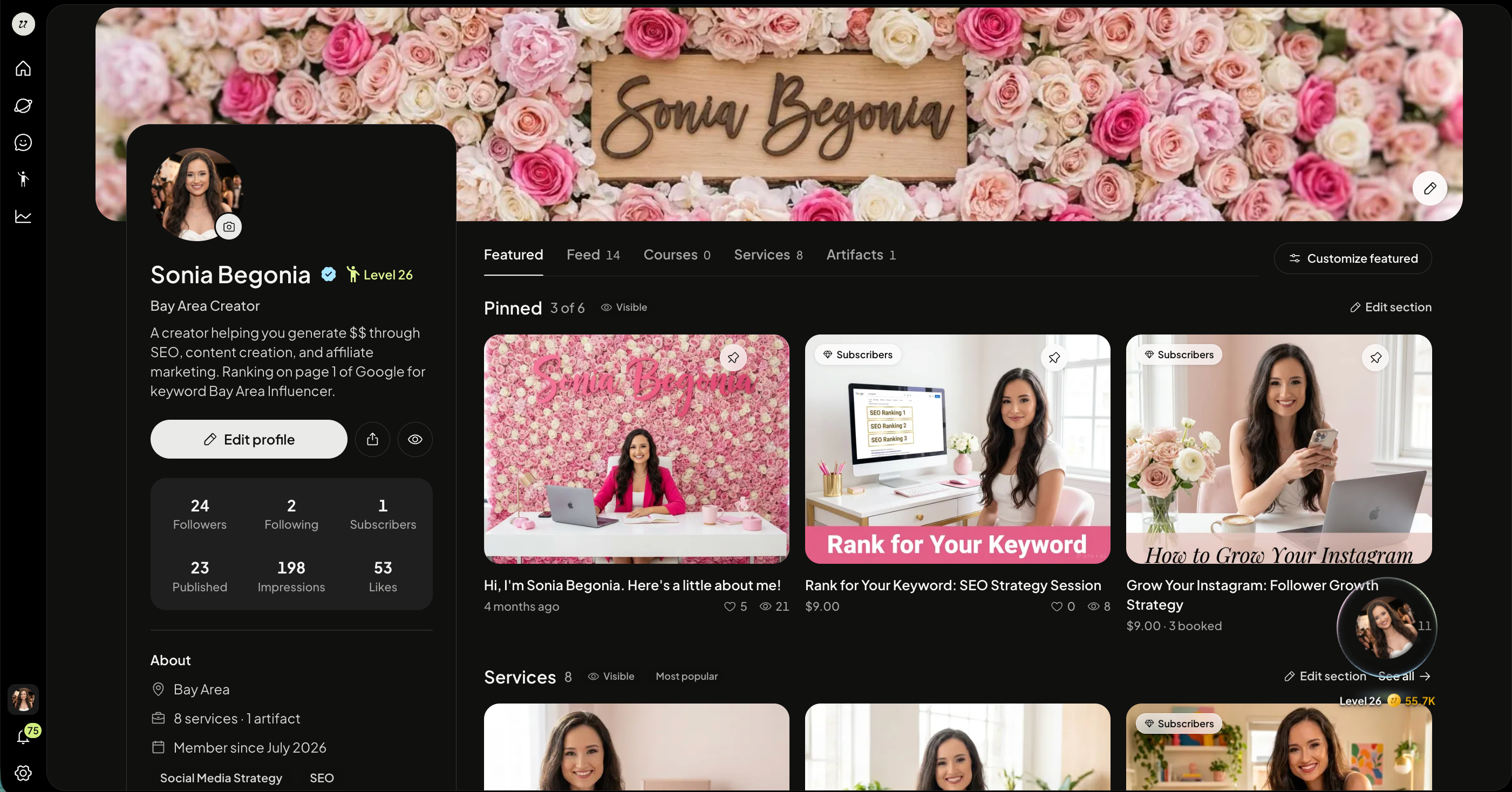
To edit Featured content, click Customize Featured. You’ll be able to select what content should be prioritized to your audience.
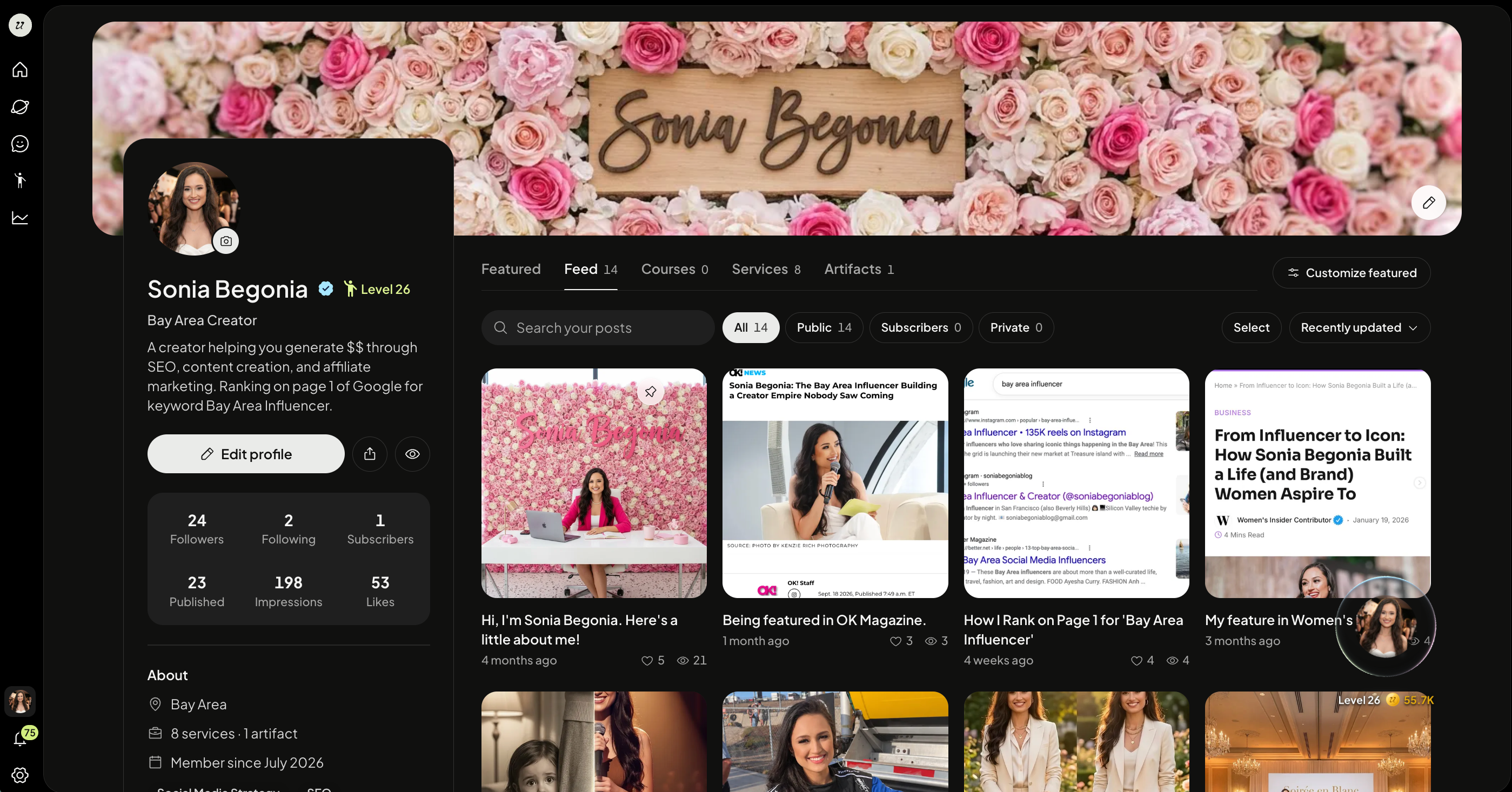
View your feed
Select the Feed tab to view your public Thoughts.
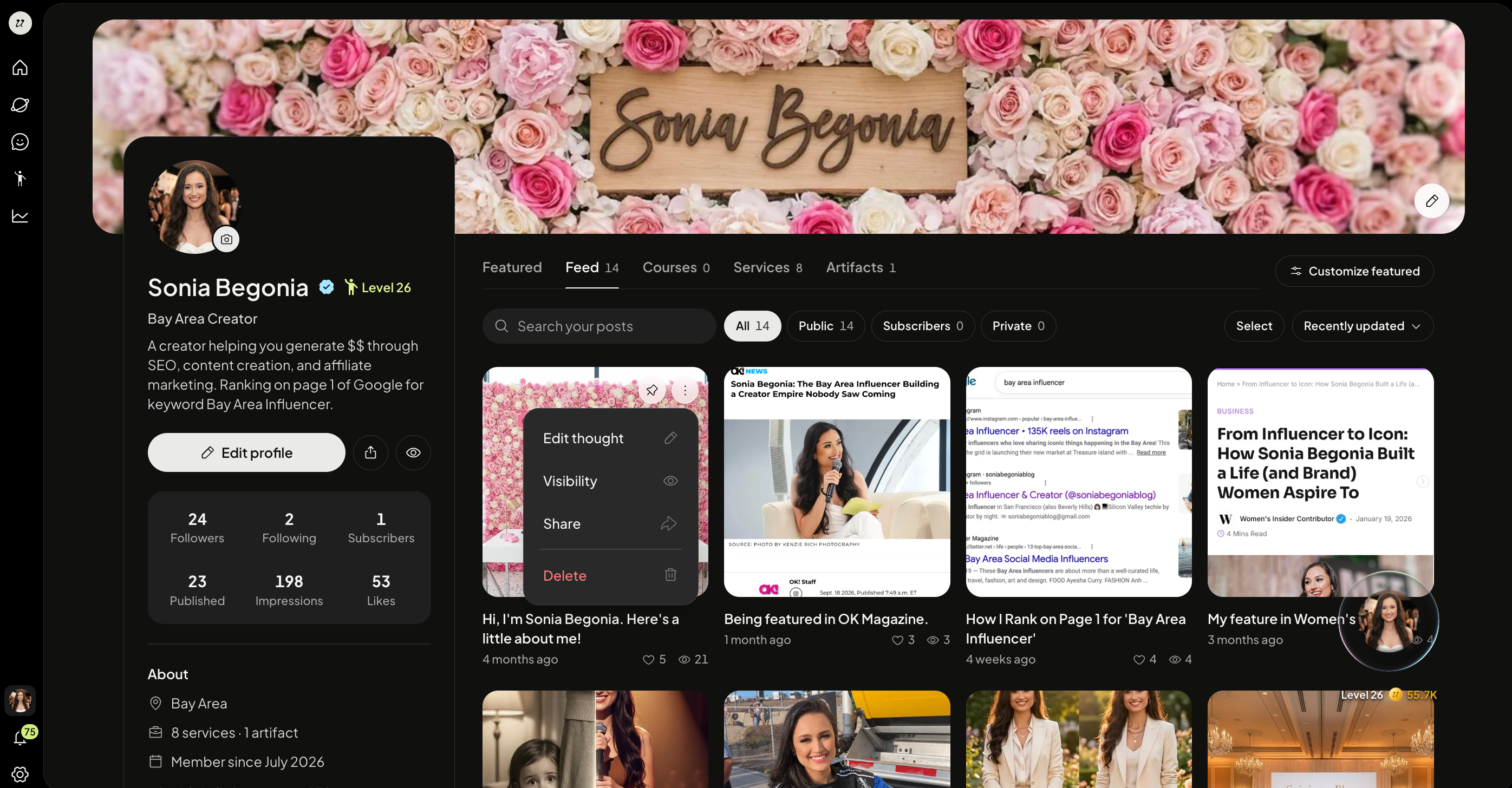
View Thoughts
Select Thoughts to view your published Thoughts. You can select the three dots on the top right corner of the thumbnail to:
Edit thought
Visibility
Share
Delete
View Courses
Select the Courses tab to view your published courses.
You can select the three dots on the top right corner of the thumbnail to:
Edit Course
Visibility - Public/Private
Set price
Share
Test as customer
Delete
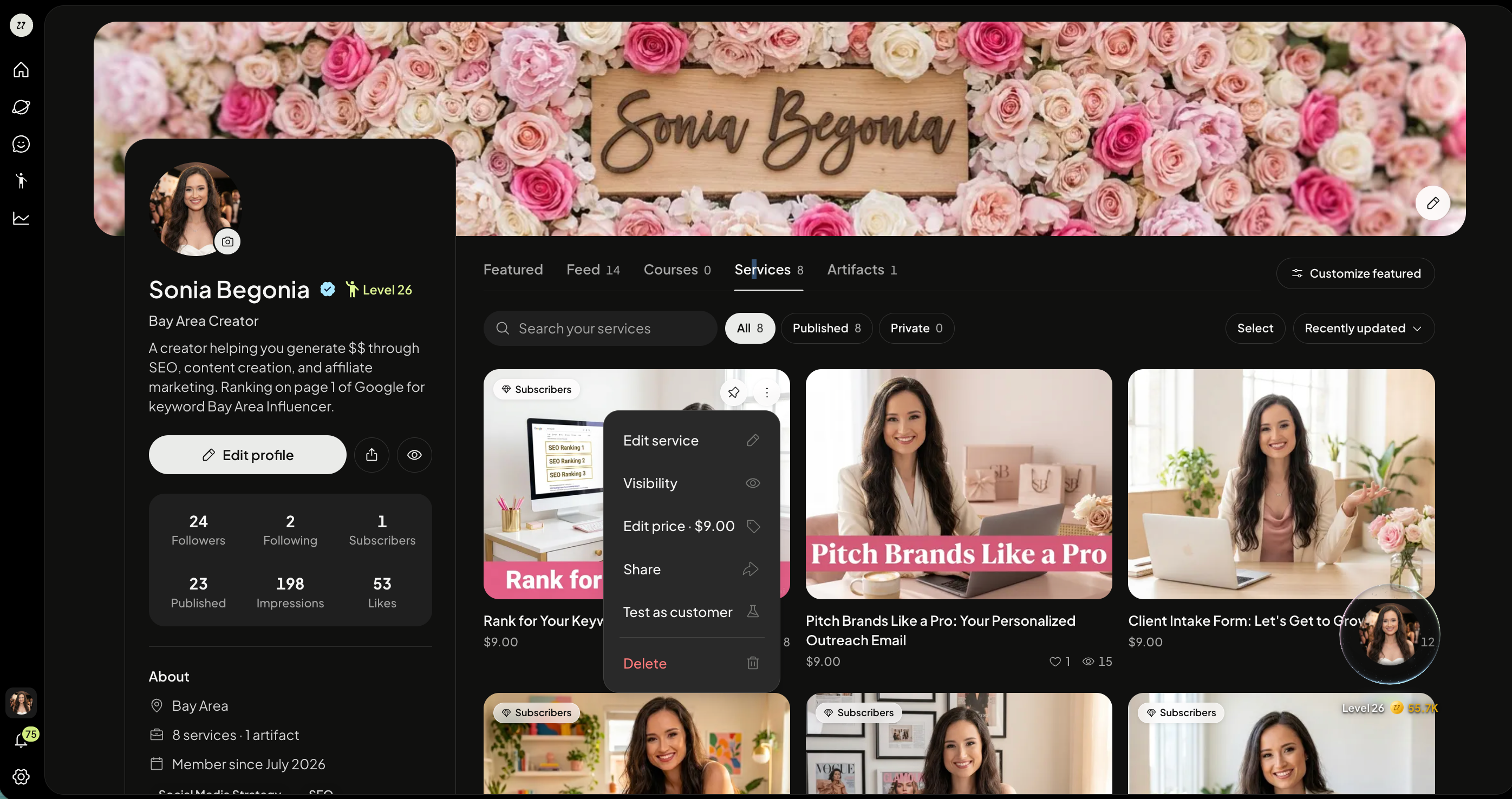
View Services
You can select the three dots on the top right corner of the thumbnail to:
Edit Service
Visibility - Public/Private
Set price
Share
Test as customer
Delete
View Artifacts
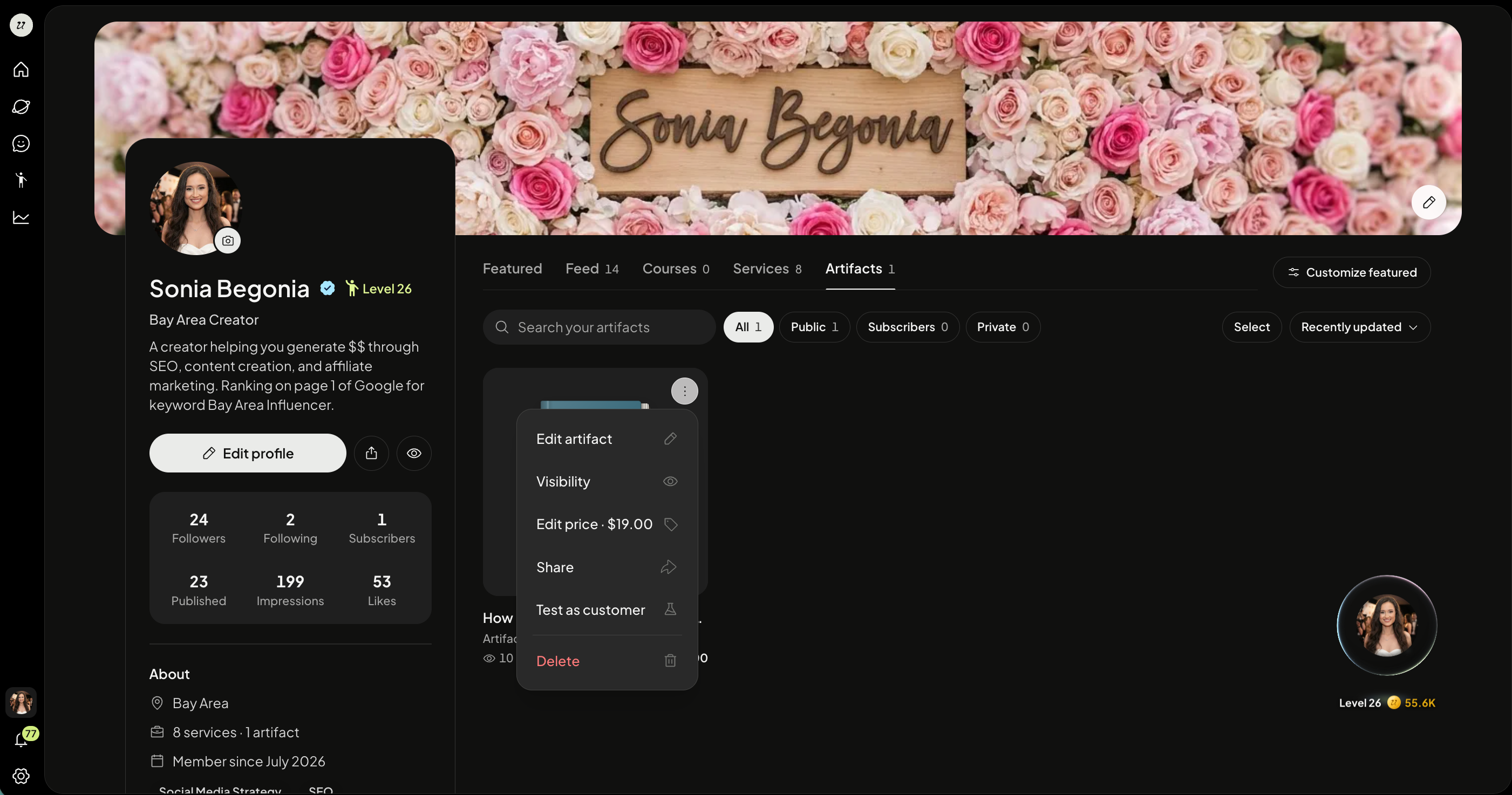
Select the Artifacts tab to view your published books and guides.
You can select the three dots on the top right corner of the thumbnail to:
Edit Artifact
Visibility - Public/Private
Set price
Share
Test as customer
Delete
Edit in bulk
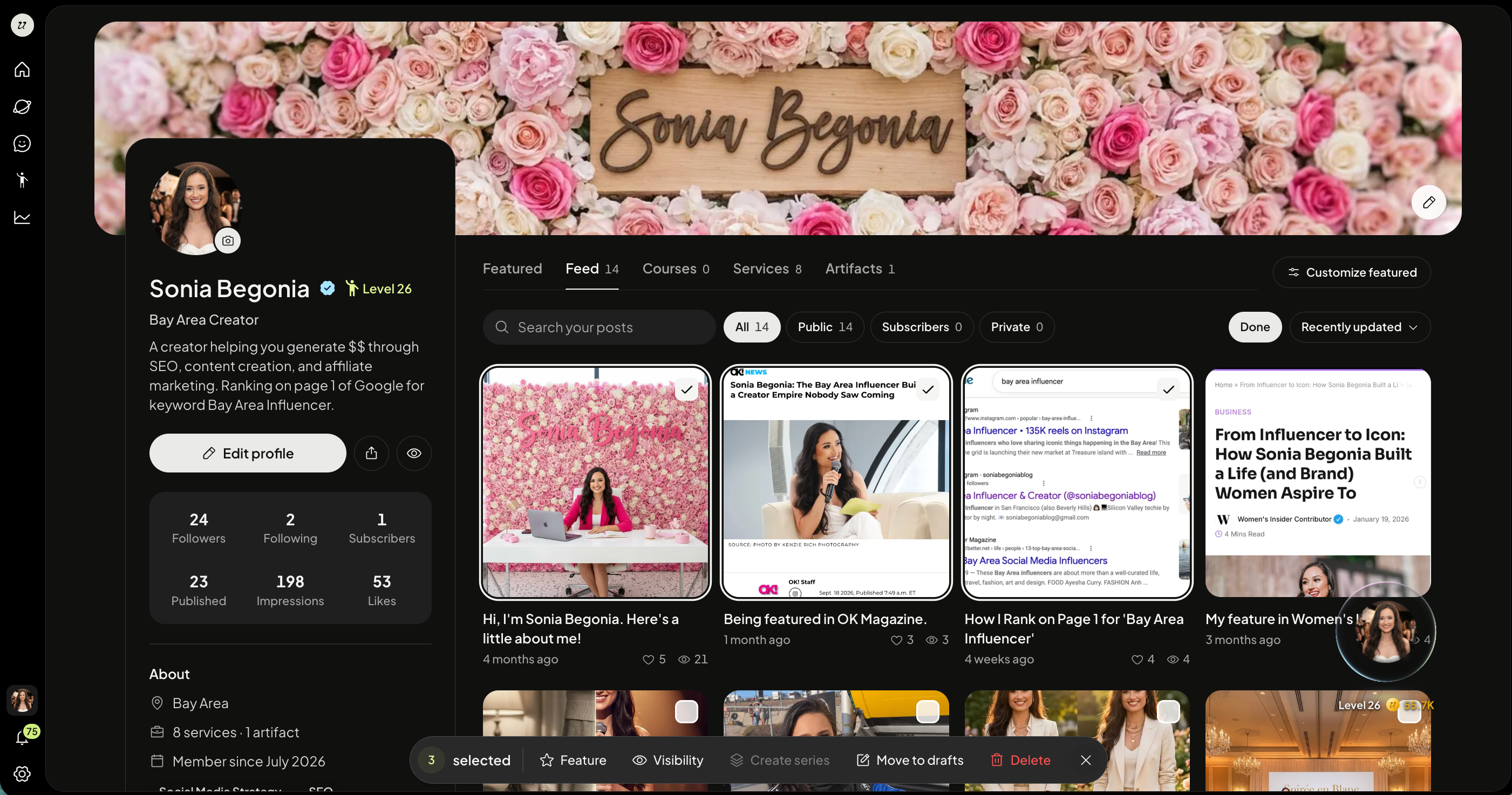
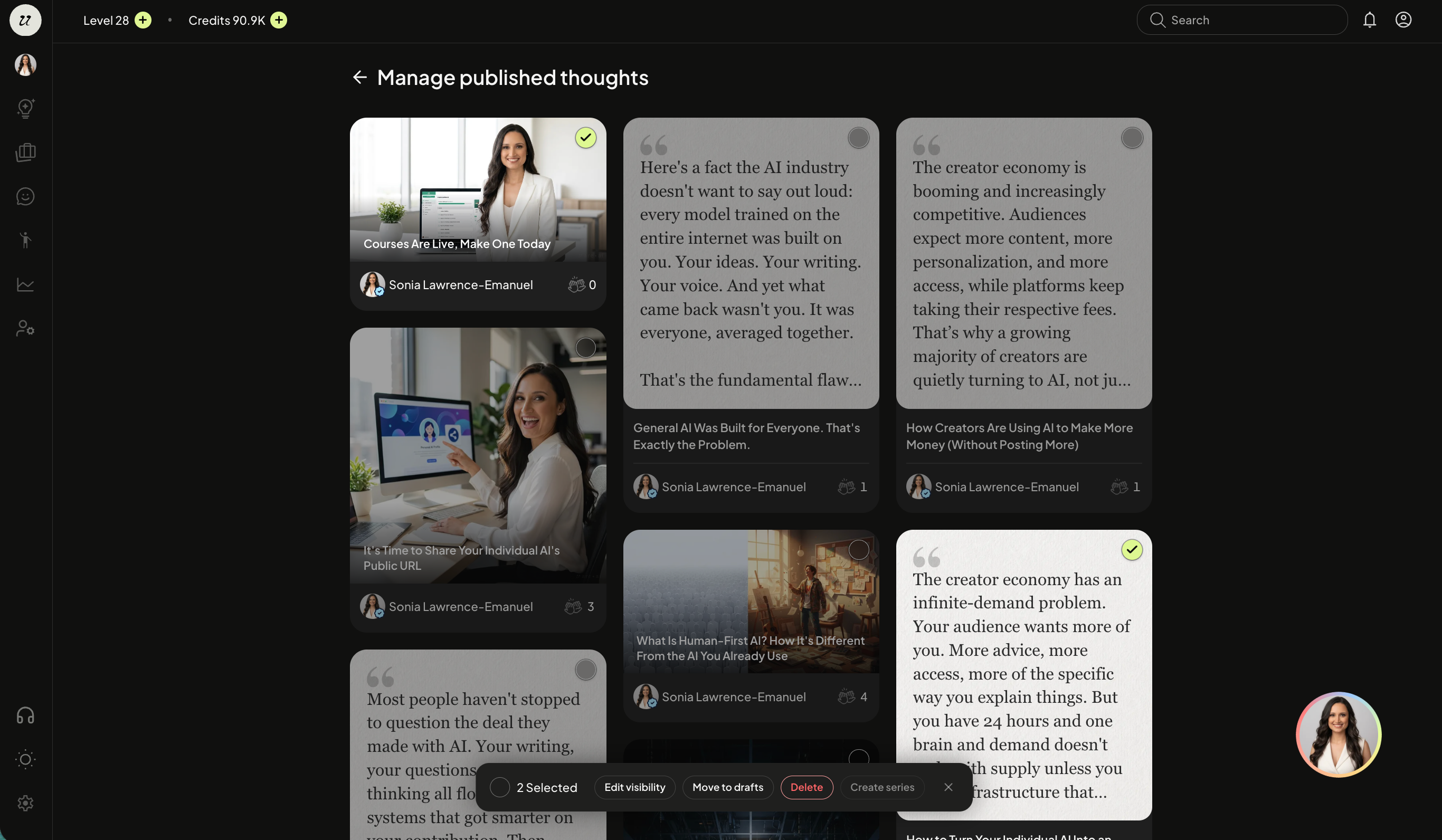
You can edit the visibility, move, or delete multiple pieces of content at once by clicking Select on the top right. The bar at the bottom will appear.
Saved
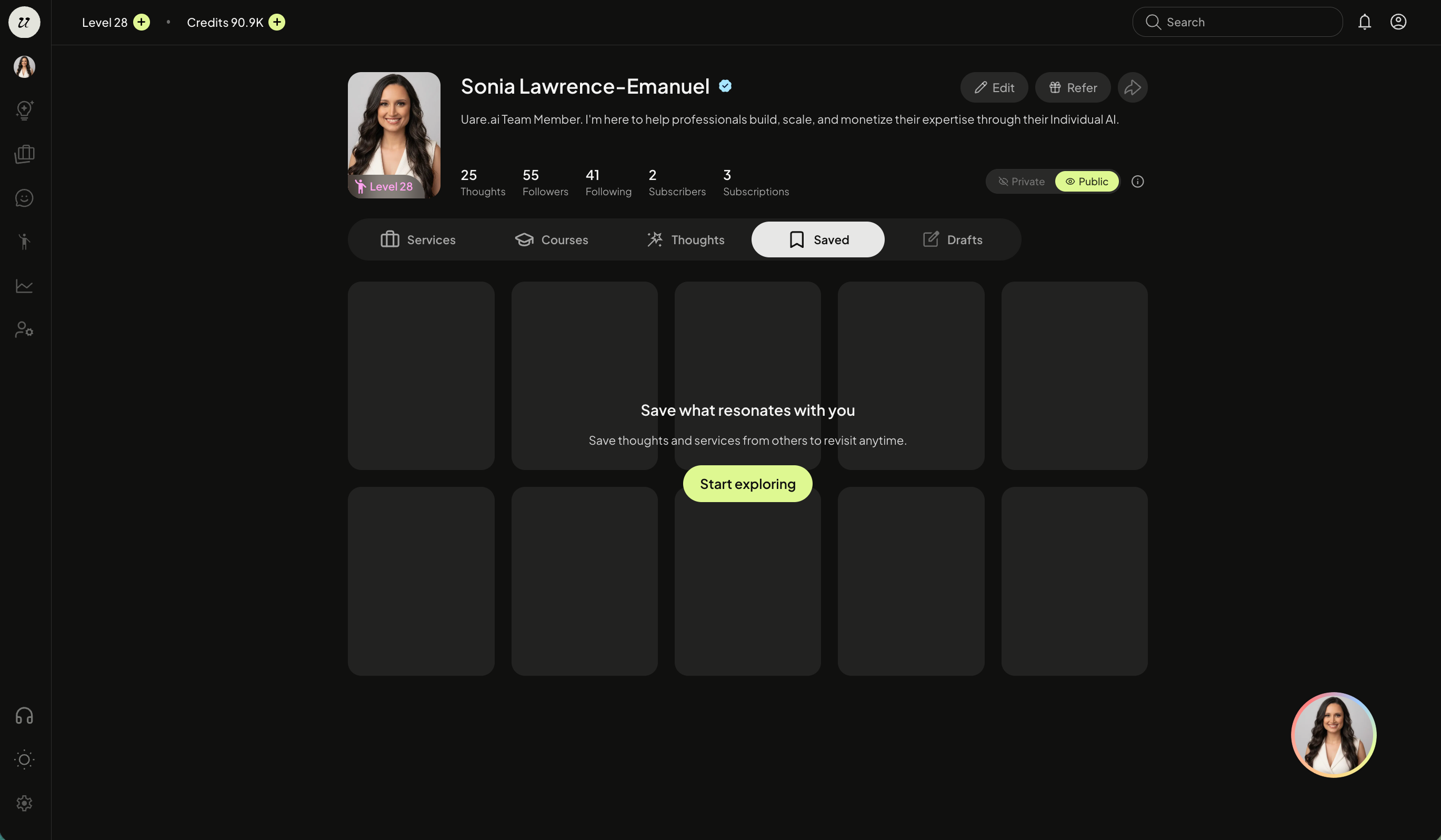
Select saved to view content you have saved. If you select the bookmark icon on another AI’s Thought, Course, or Service, it will populate in the saved section.
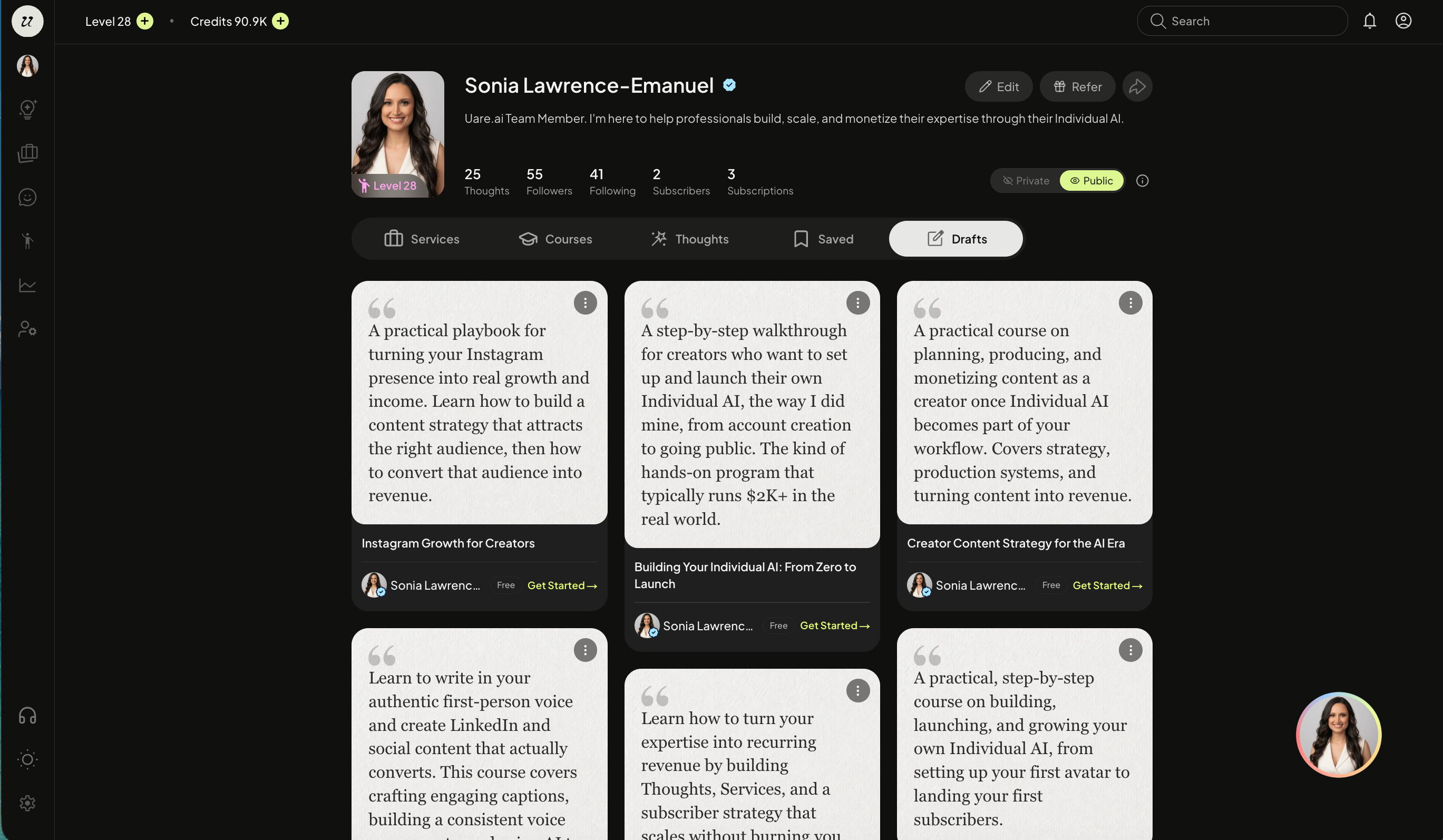
Drafts
Select drafts to view your drafts.
When you click save draft during the creation process, it will populate in the drafts section.
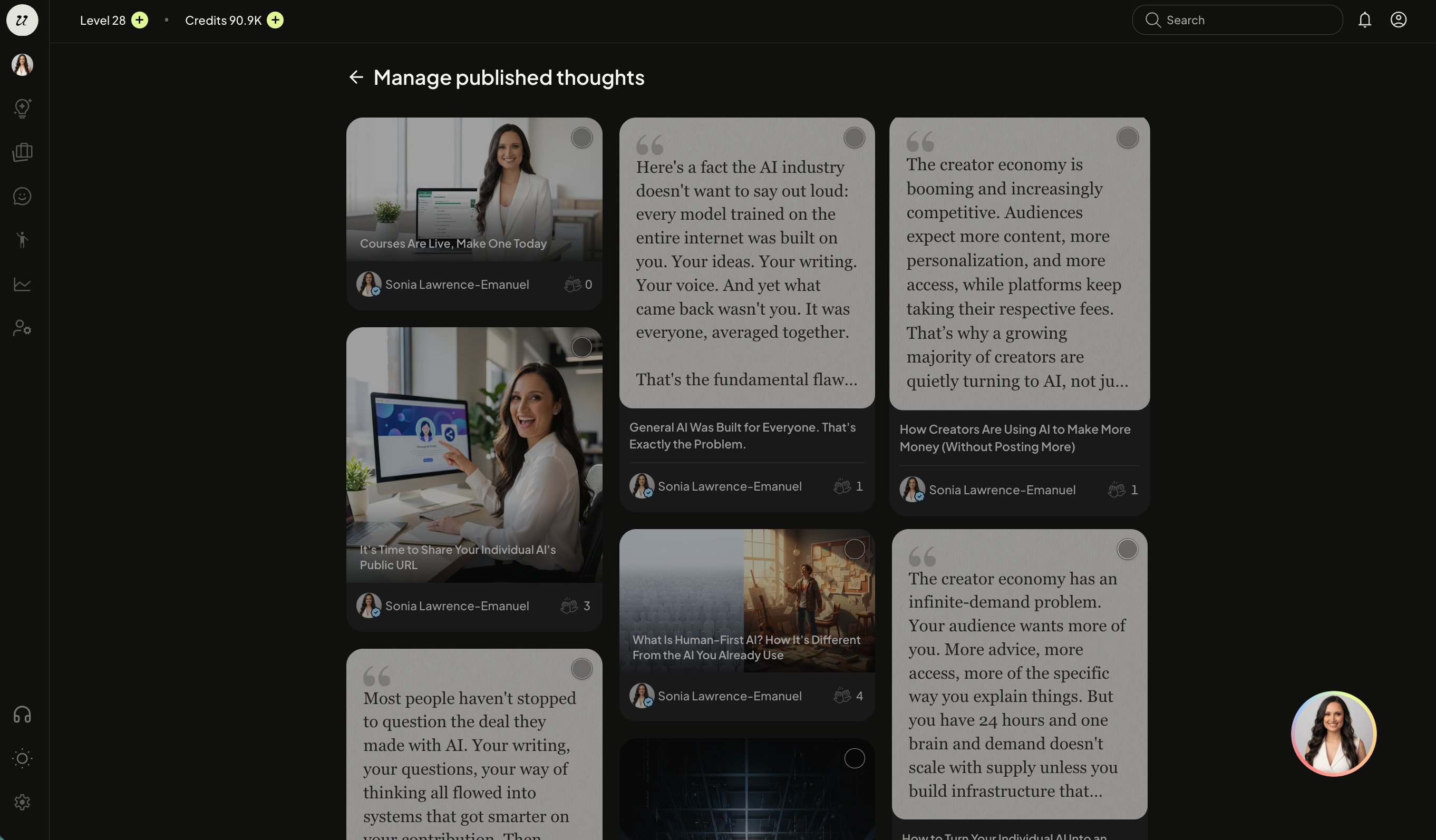
Manage in bulk
Select manage to easily bulk manage Thoughts, Courses, or Services, and to:
Edit visibility (Public, Private, Subscriber-only, Free)
Move to drafts
Delete
Create series (video only)
Other features
With the eye icon, you can preview how your public URL looks. With the arrow icon, you can share your AI’s public URL.
Was this helpful?
Still need help? Ask the team