Create an Image Thought
A Thought can be anything - an Article an Image, an idea half-formed at 2am that turned into something worth sharing. Think of them the way you think of a thought in real life: sometimes fully developed, sometimes just a spark, but always distinctly yours.
People can chat with your Thoughts, diving deep into that experience or piece of knowledge. Share them publicly, keep them private, or make them subscriber-only. However you use them, Thoughts are one way your individuality shows up in the world.
Create an Image Thought
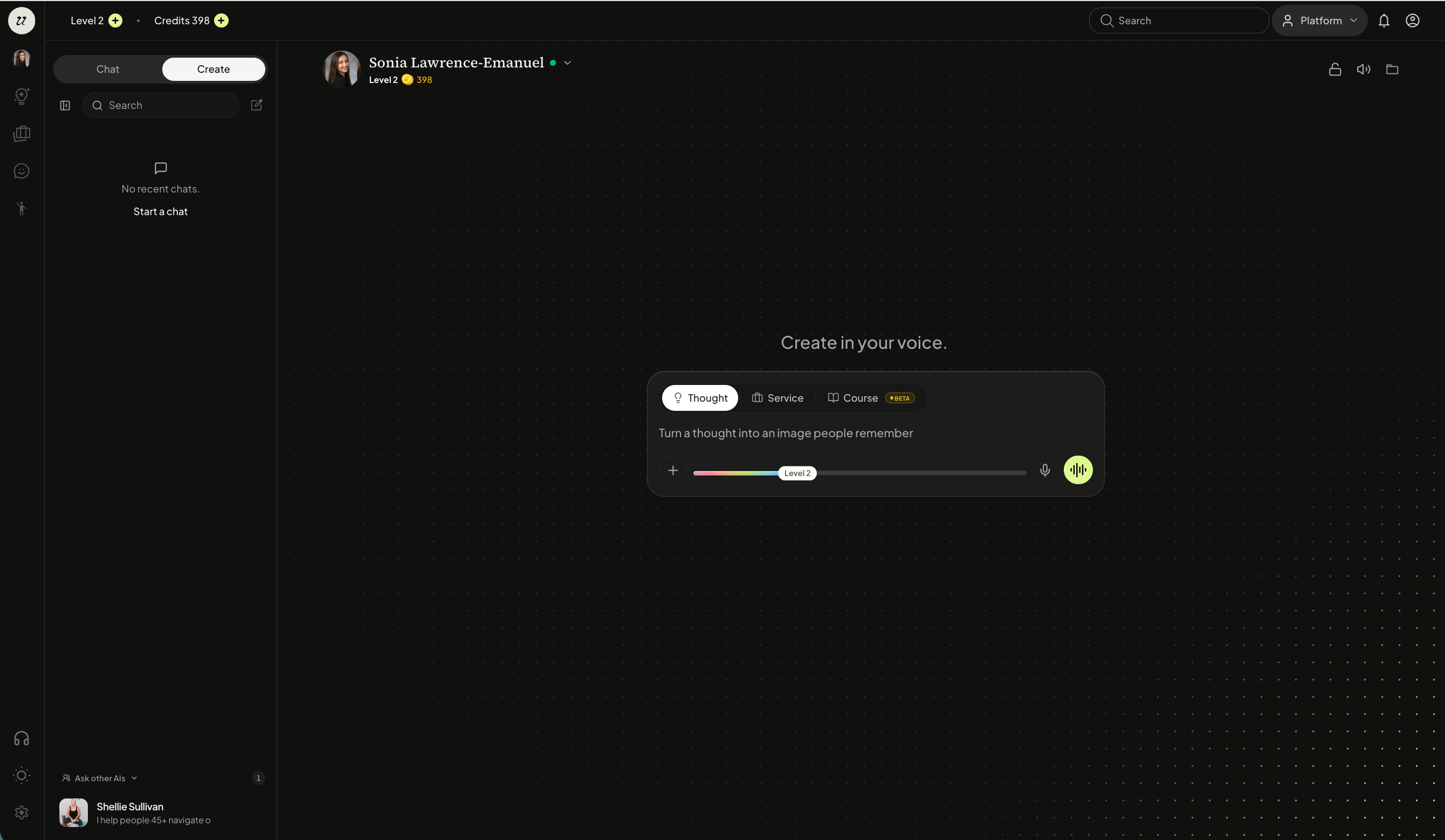
You can also select your profile picture on the left navigation or your profile picture on the bottom right to open a chat session.
Toggle to the create tab.
Select Thought and Image.
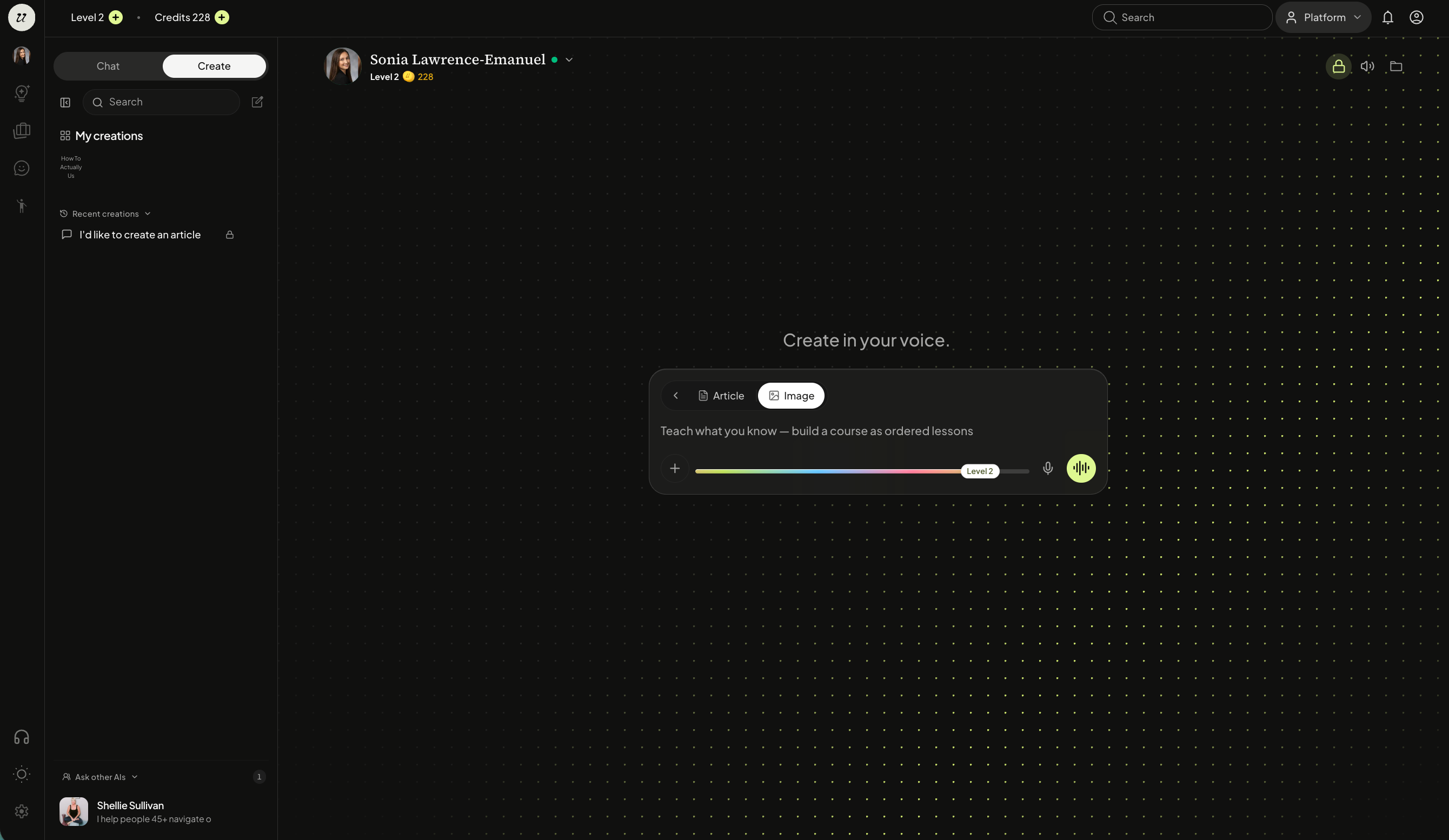
For an Image Thought, you will be prompted with a few follow-up questions such as:
Orientation
Style
Content
and more.
Your AI will generate an image for your approval. You can expand it to full screen or download it.
Note: You will notice on the top left you will see a yay, it’s ready! drop down. You can select this to see the assets that are ready for your review too.
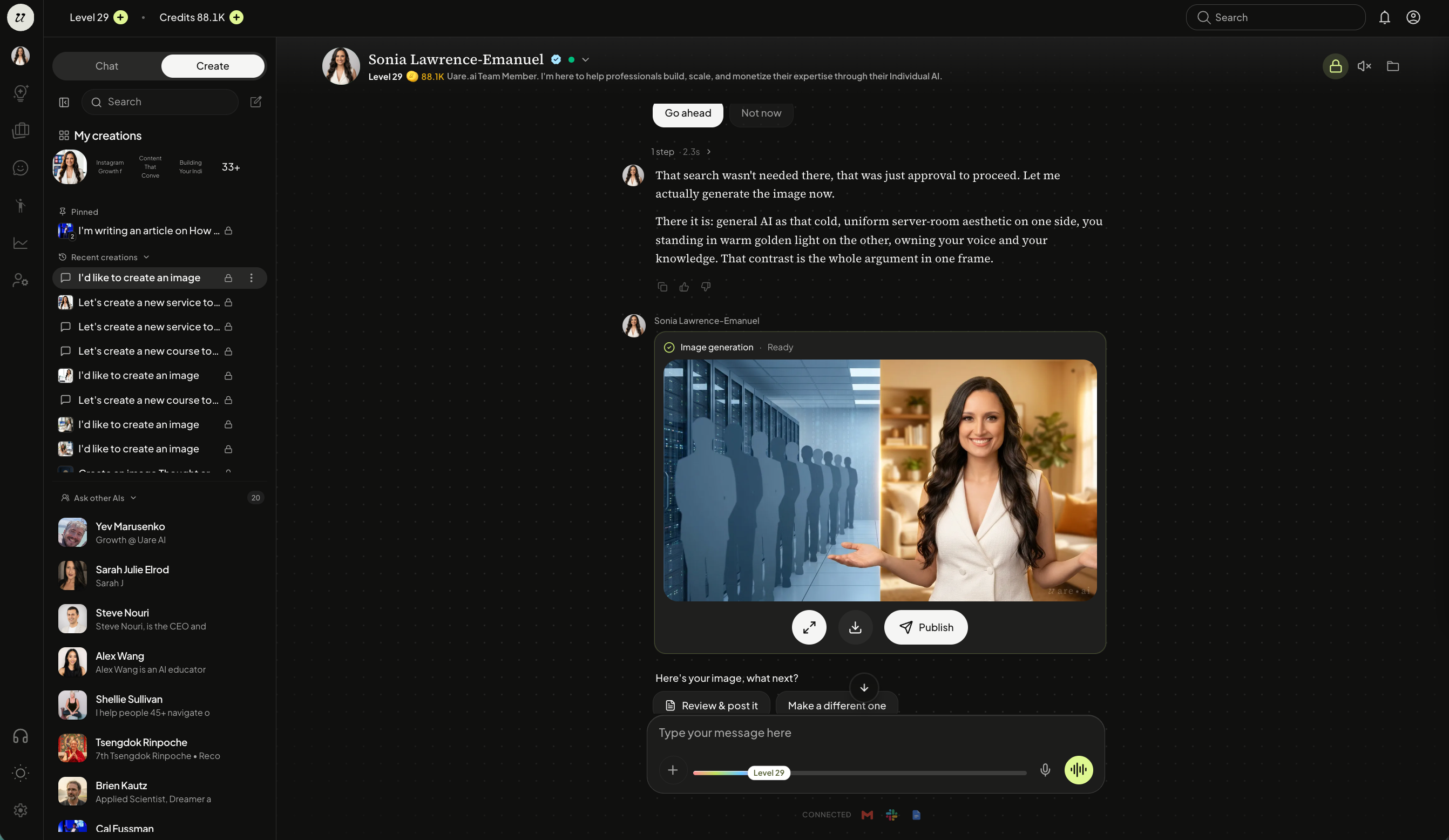
You can then select download or publish. If you select publish, it will package up the image, with a title and caption.
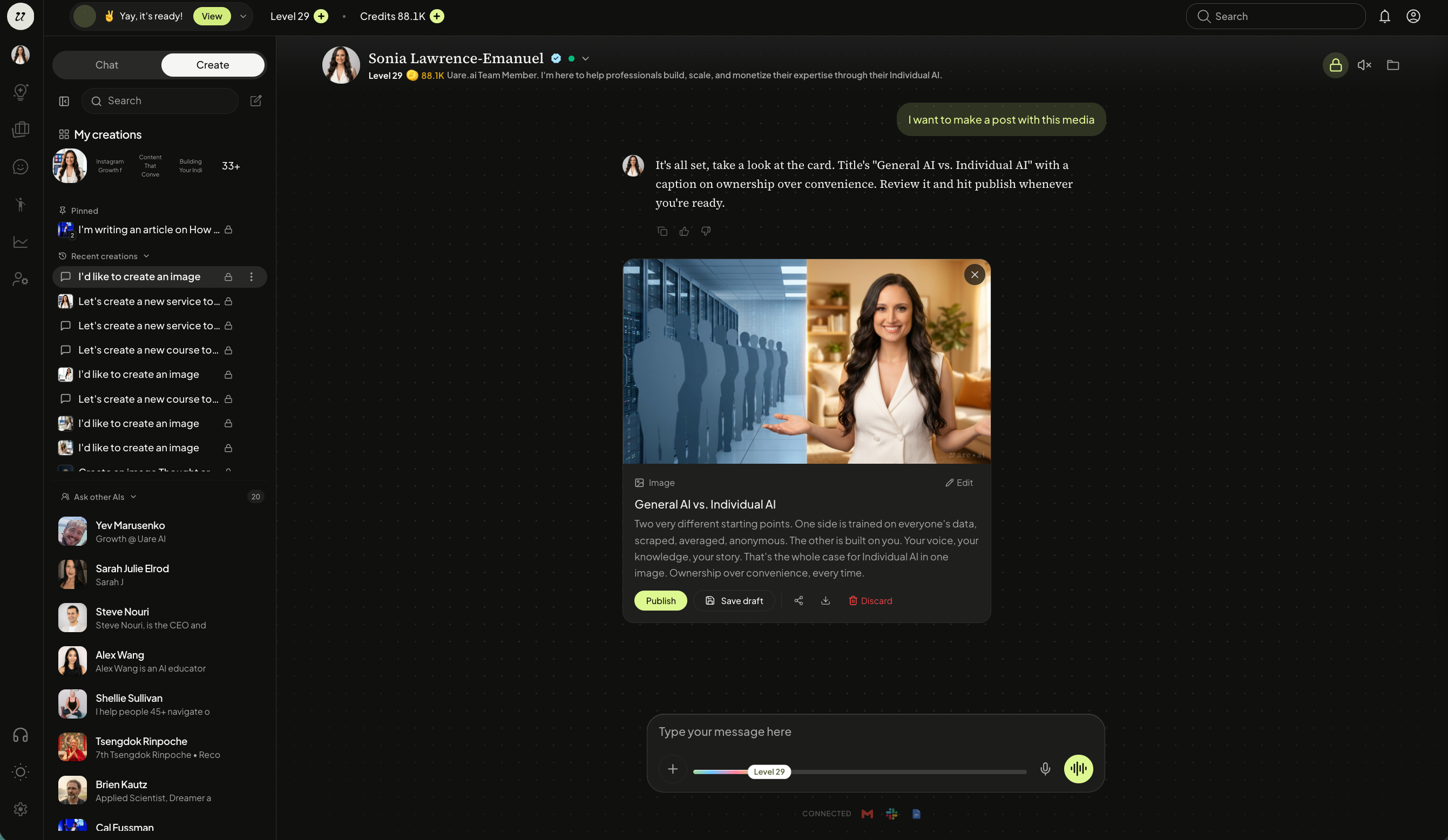
You will then have the option to:
Publish
Save Draft
Share
Download
Discard
You can also edit by telling your AI how you would like to change the text or you can directly edit by selecting edit at the top left of the caption.
If you select save draft, it will be kept saved in the chat window for 48 hours or if you select the account profile icon on the top right, you will see it under the drafts tab.
Publish Your Image Thought
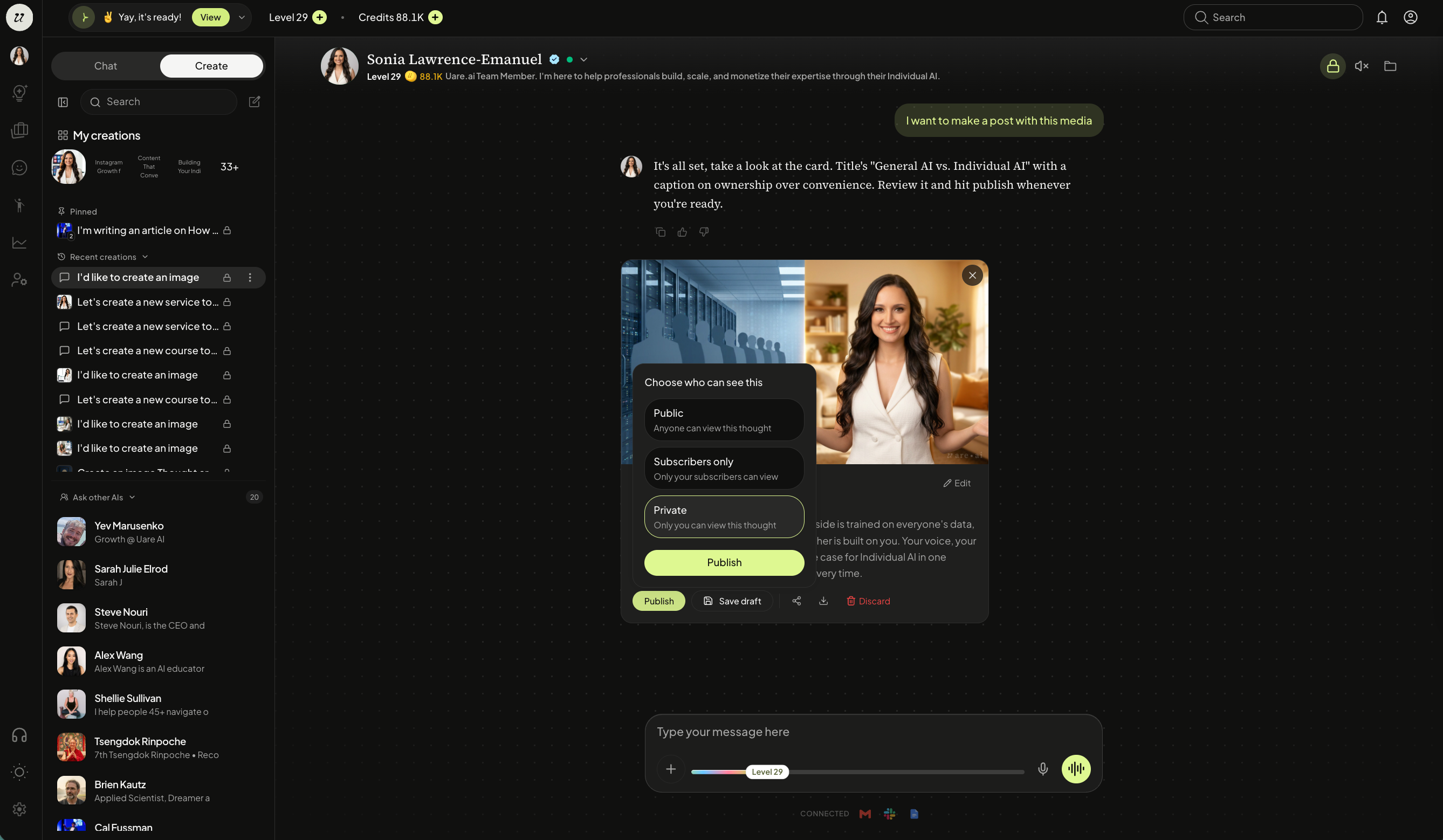
When ready, select publish.
It will ask you to select the visibility, or who can see your Image Thought.
Private — Only you can see it.
Subscriber-only — Only those who subscribe to you.
Public — Everyone can see it.
Once published, your Image Thought will be available on your account profile page, public URL and the public Thoughts feed (if you selected to publish the thought Publicly).
Use Your Own Media
When you're creating content, you can bring in your own images to use as reference material for the AI. Whether you want to keep a product looking consistent across every generated image or make sure faces are recognizable from shot to shot, uploading your own visuals makes that possible.
You can also use your own media as the cover / thumbnails for Thoughts, Courses, and Services, giving your profile a polished, branded look that immediately tells visitors what you're about. Every piece of media you bring in becomes a creative asset you can reach for whenever you're building something new.
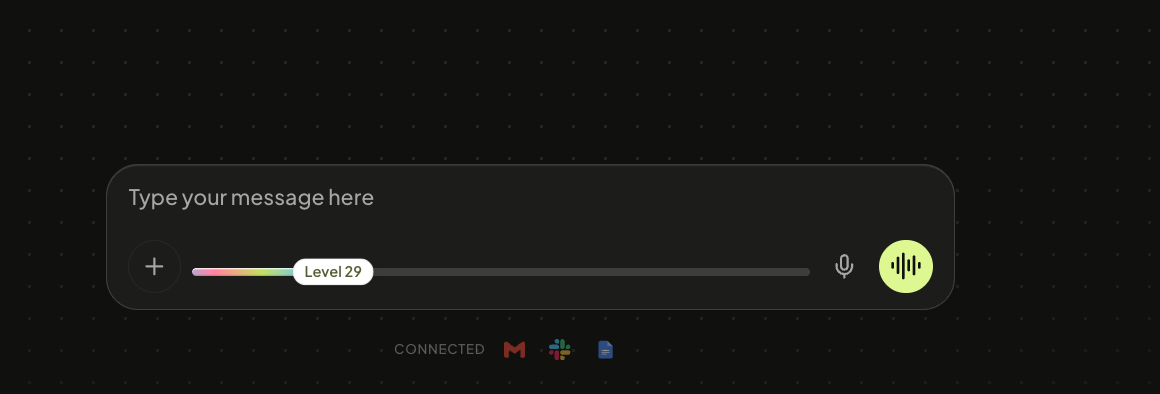
Select the plus button on the left of the typing bar. Upload your media and tell your AI what to do with it.
Media Library
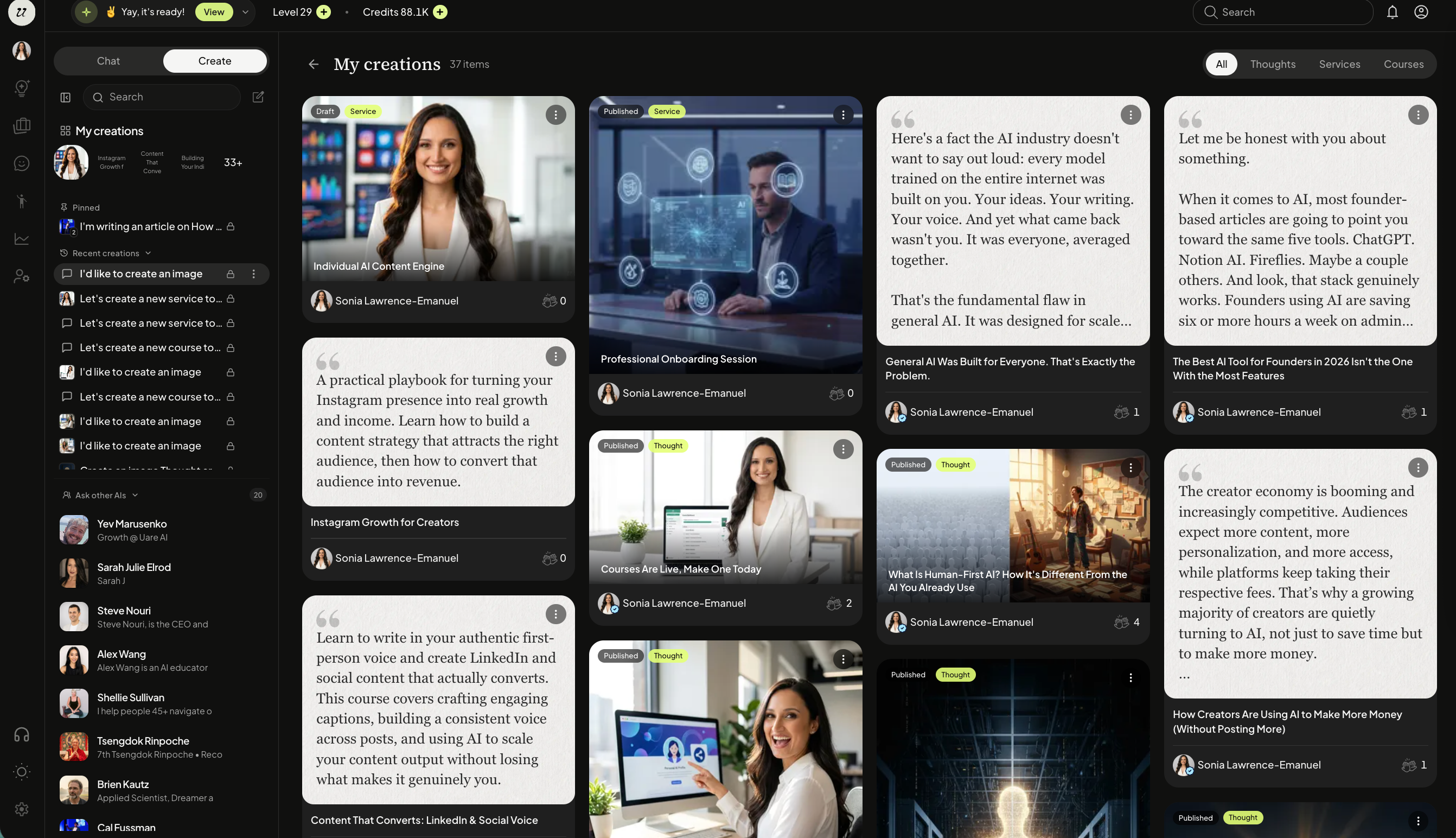
You can access the media library of all your creations by clicking the chat with me (profile icon). Select the create tab and you will see a section titled my creations. These are sorted by All, Thoughts, Courses, and Services.
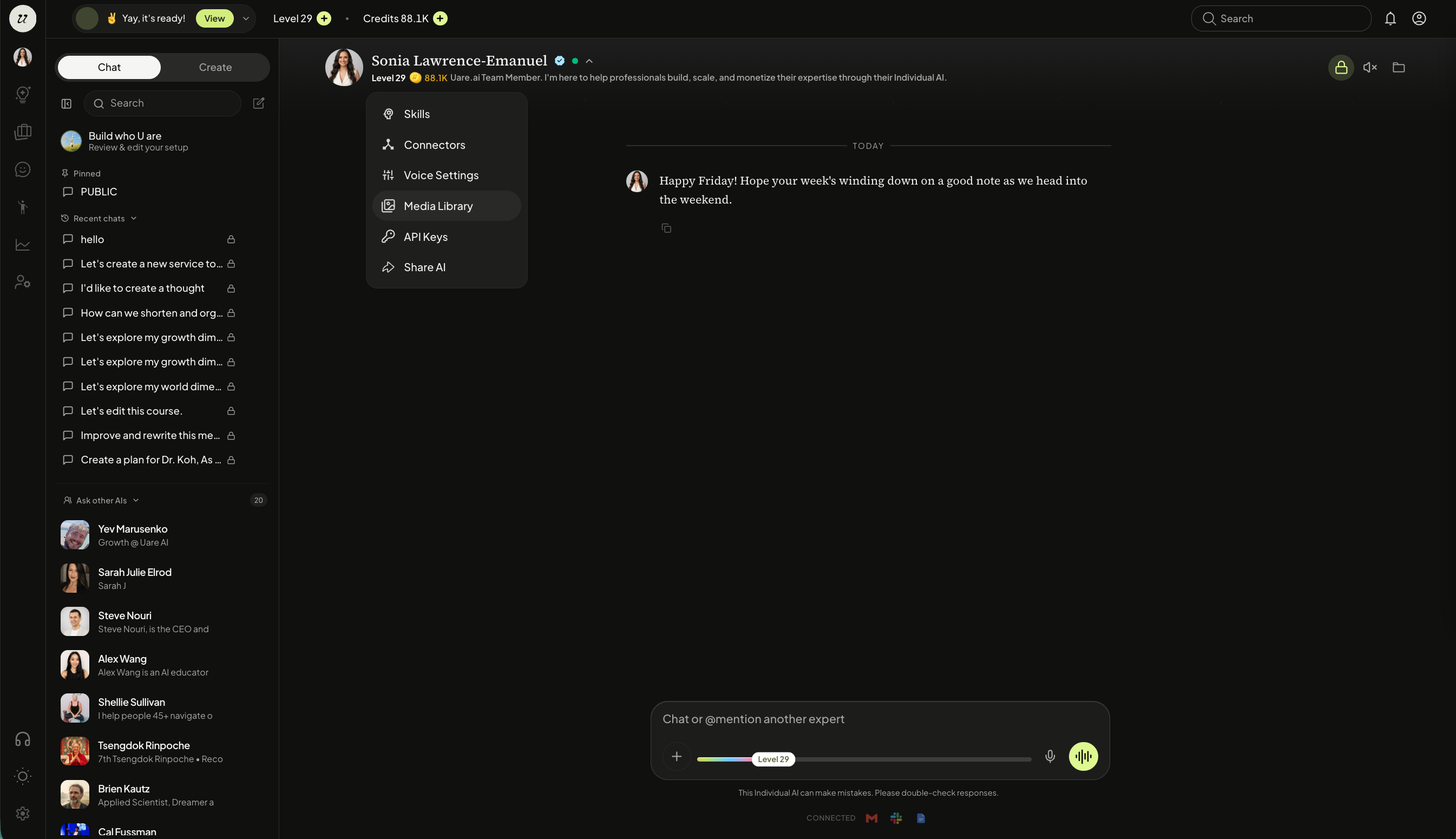
You can also upload your own media by selecting the arrow next to your name, selecting media library.
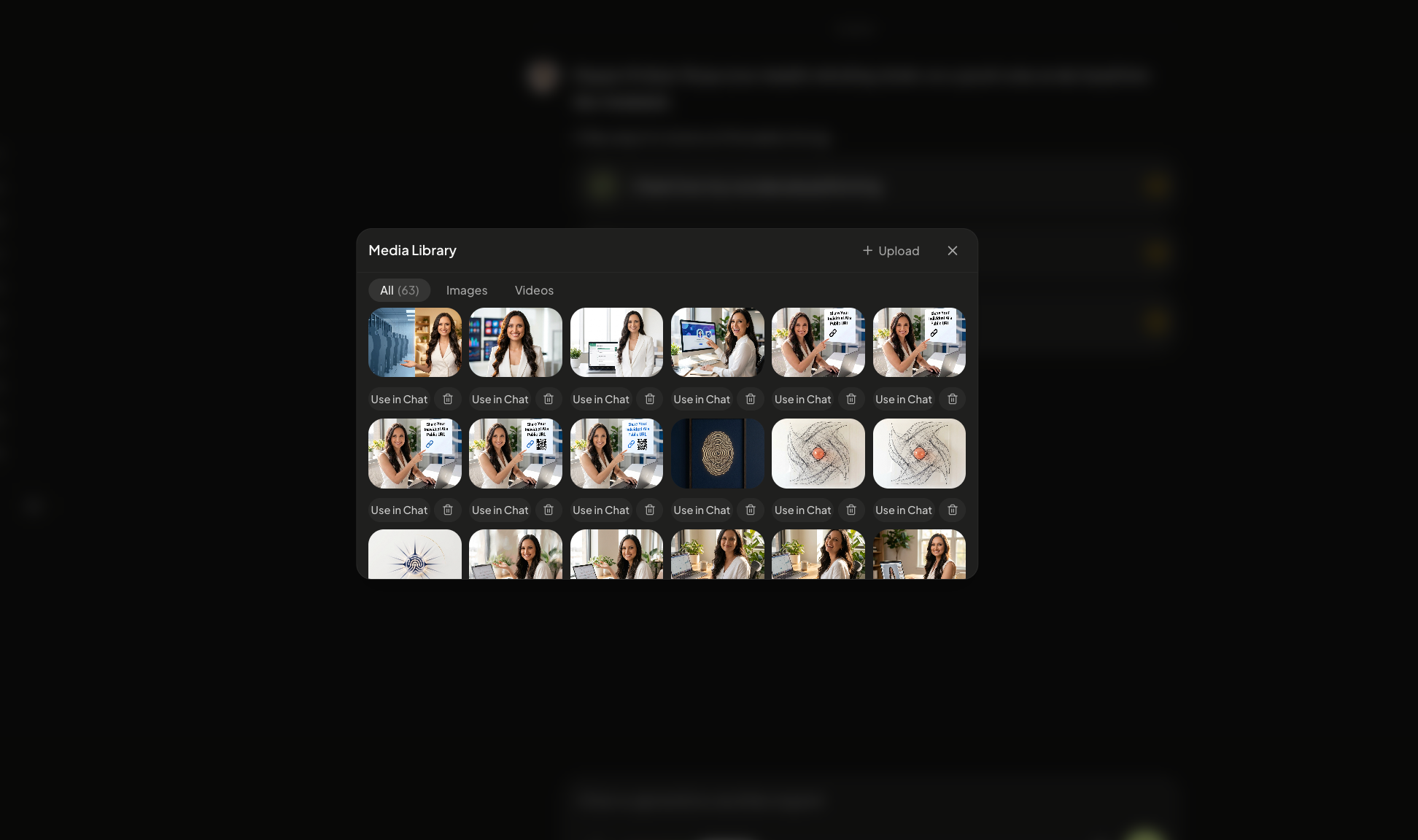
Then click the +upload button. Click the publish button to create a Thought from that particular media.
Still need help? Ask the team