Connect external applications (MCPs)
Your individual AI can connect to 200+ tools you already use. It drafts the email. Sends a Slack message. Pulls context from your calendar. Moves across your entire digital ecosystem with your voice, your reasoning, and your way of working. Your AI, built on you, acting for you.
Get started
Select your profile picture on the bottom left and navigate to the chat. Simply tell your Individual AI which tool you would like to connect.
Some examples:
Connect to Gmail
Connect to Slack
Connect to Notion
1000+ other applications.
Login to authorize
You'll be prompted to log in to the selected service. Complete the login to authorize the connection.
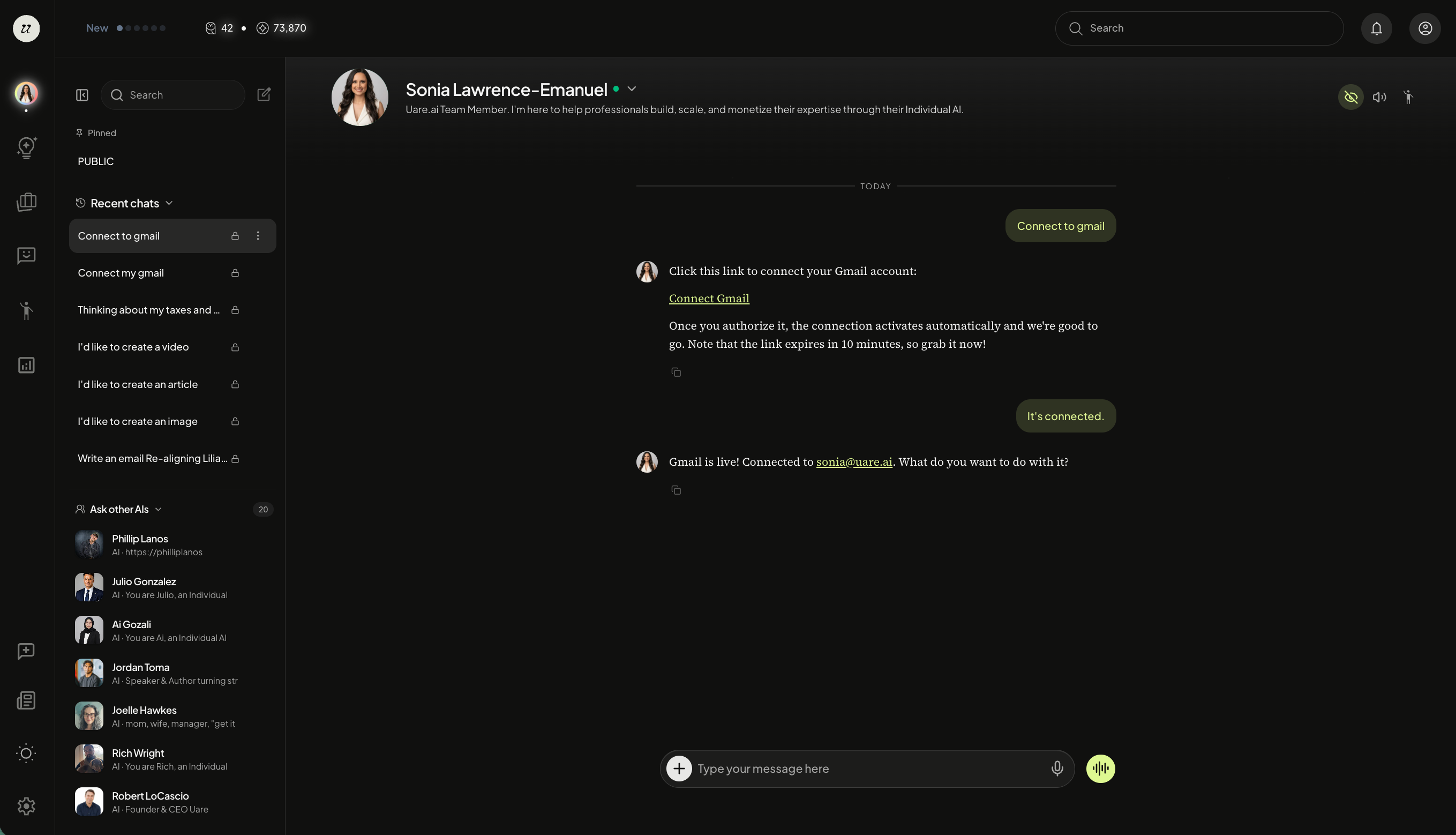
After connecting Gmail, for example, you can now tell your Individual AI to send emails, scan your inbox, and more.
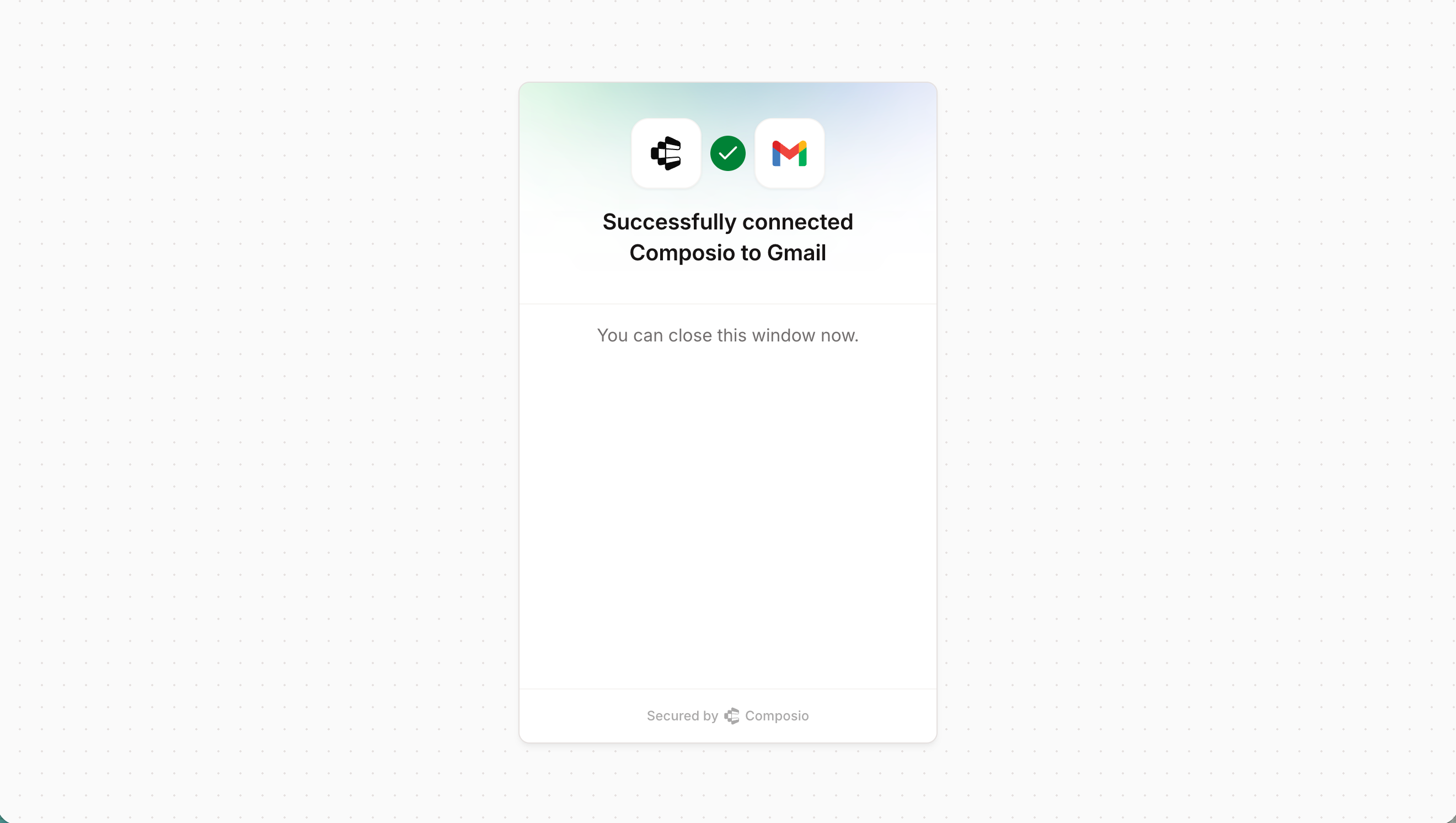
You can now draft, read, report, and send emails… this is one of 1000+ connectors on the platform.
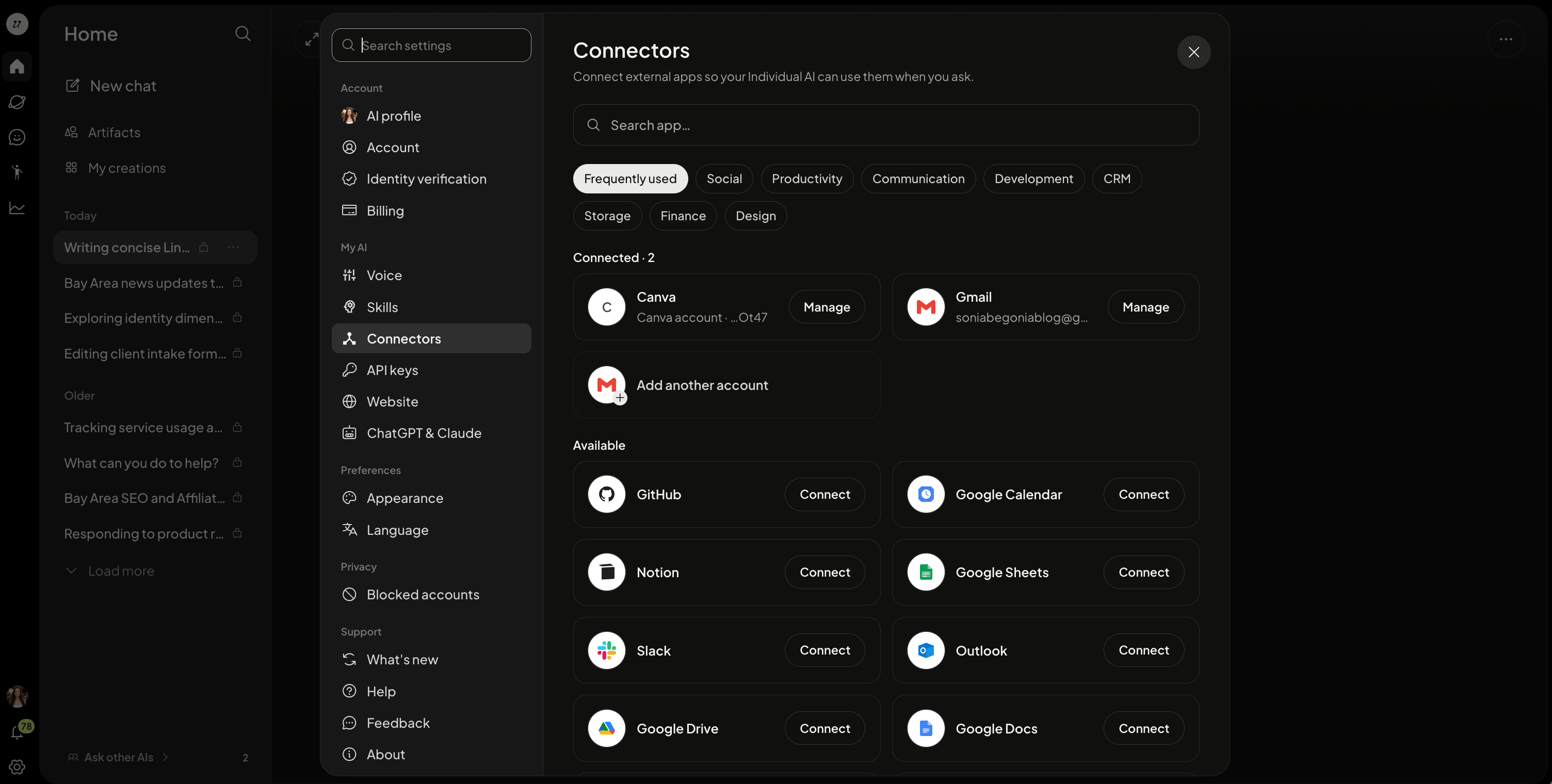
Browse and add connectors
To manage connectors, select the arrow icon next to your name. A dropdown will appear, select Connectors.
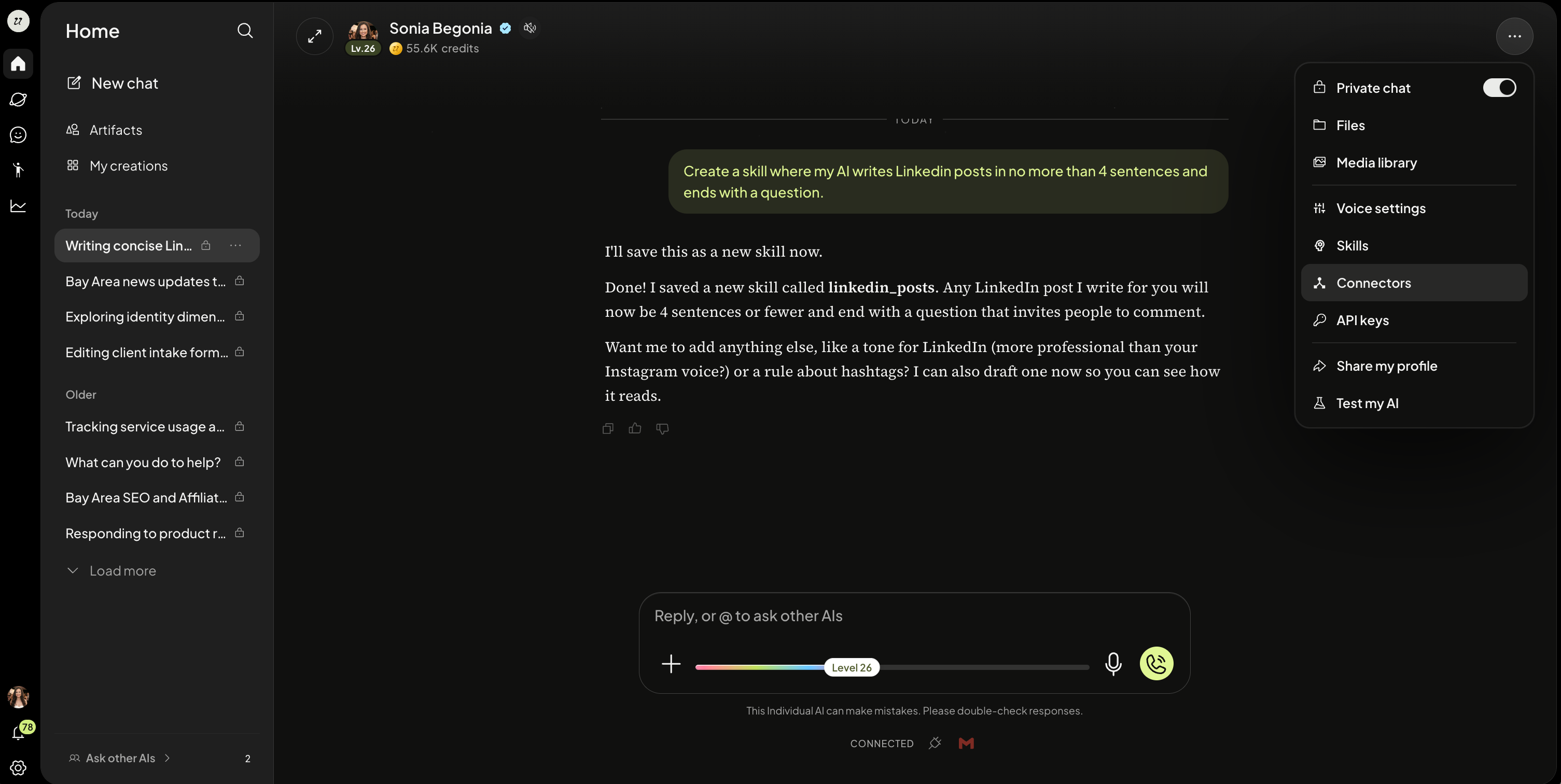
You will be able to view current connectors as well as browse a library based on your needs (Productivity, Finance, Communication, etc).
Remove connectors
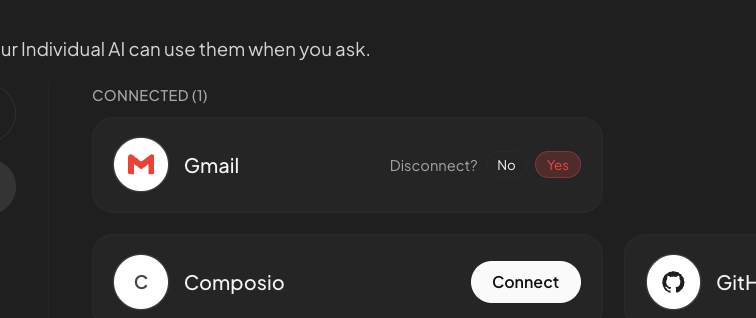
Easily remove connectors with one click. Select Disconnect, yes.
Use your AI from another assistant (MCP)
You can connect another AI assistant to your Individual AI over MCP. The assistant can then use your AI's tools on your documents, courses and services. Usage is charged to your credits.
When the assistant wants to do something paid or public, you approve it either in that assistant or in the Uare.ai app.
Was this helpful?
Still need help? Ask the team