Post to Social Media
Now your AI can post to your social media account with one click.
Get started
Head to the Home icon and open a new Chat with Me session. Select Create, and Image.
Your AI can now use templates to create content.
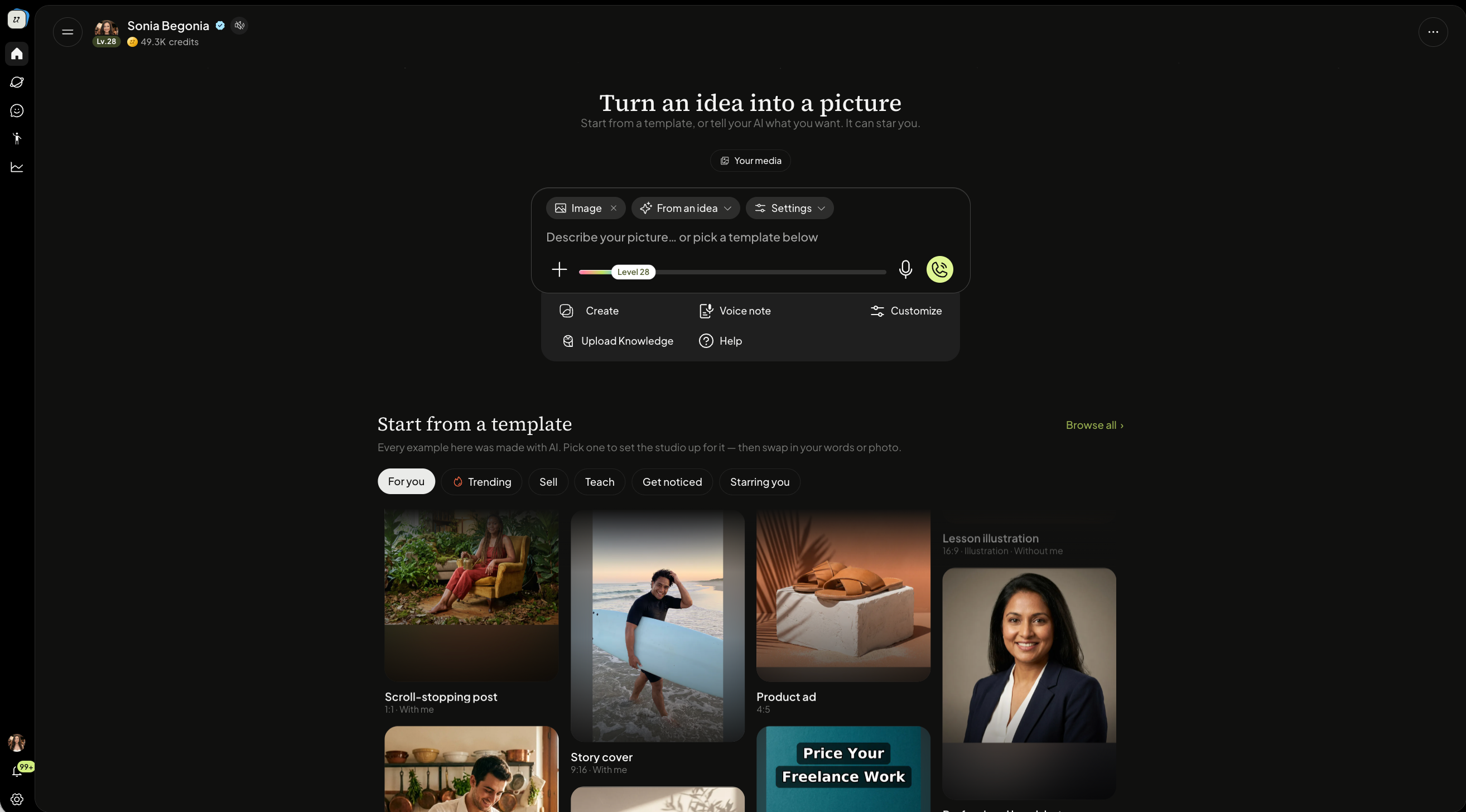
If you select the dropdown From an Idea, it will give you posting ideas.
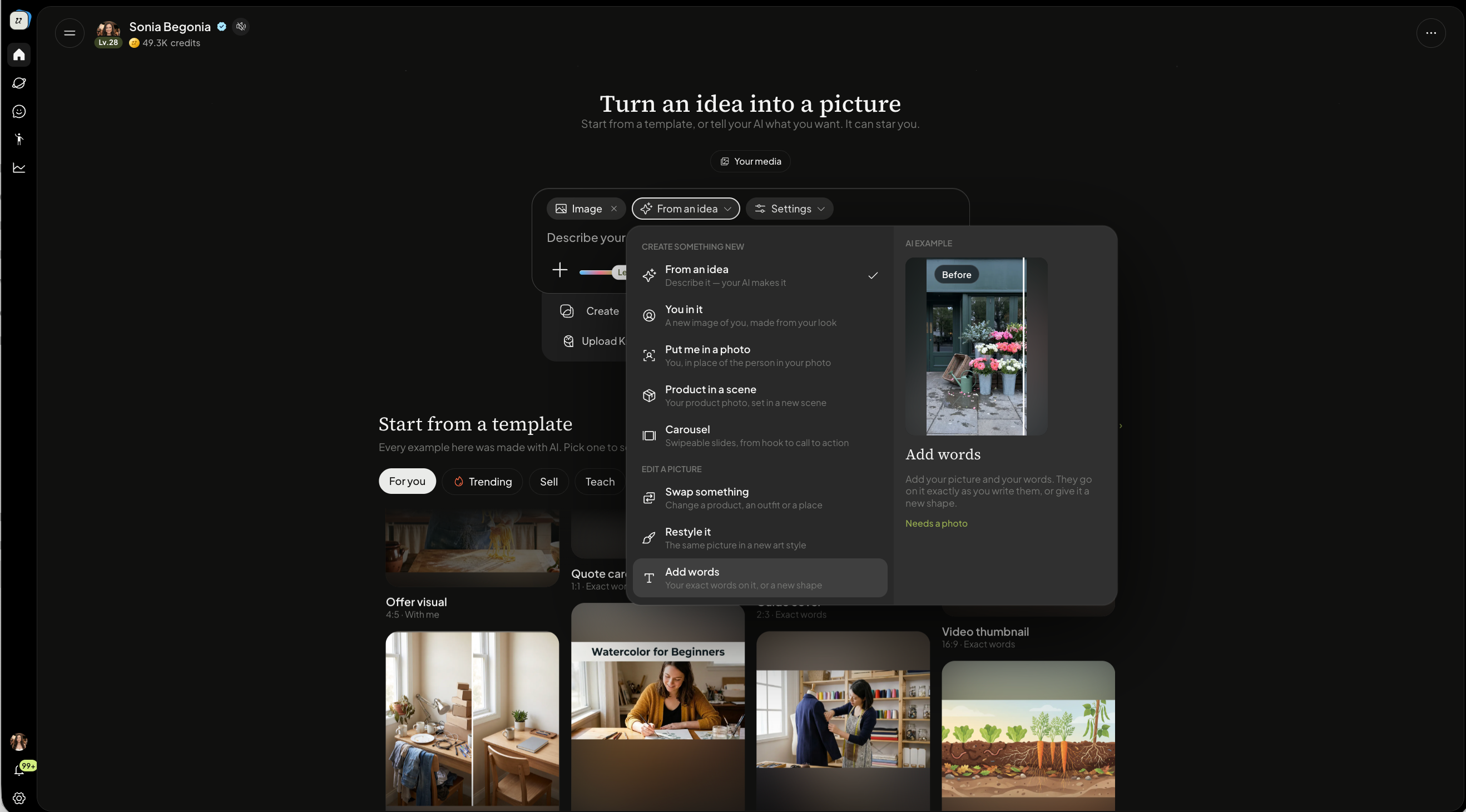
You can also type post to Instagram.
Your AI will prompt you to connect (if you have already connected it, it will skip this step). You will need to have a Creator or Professional account to post.
Share the topic of your social media post.
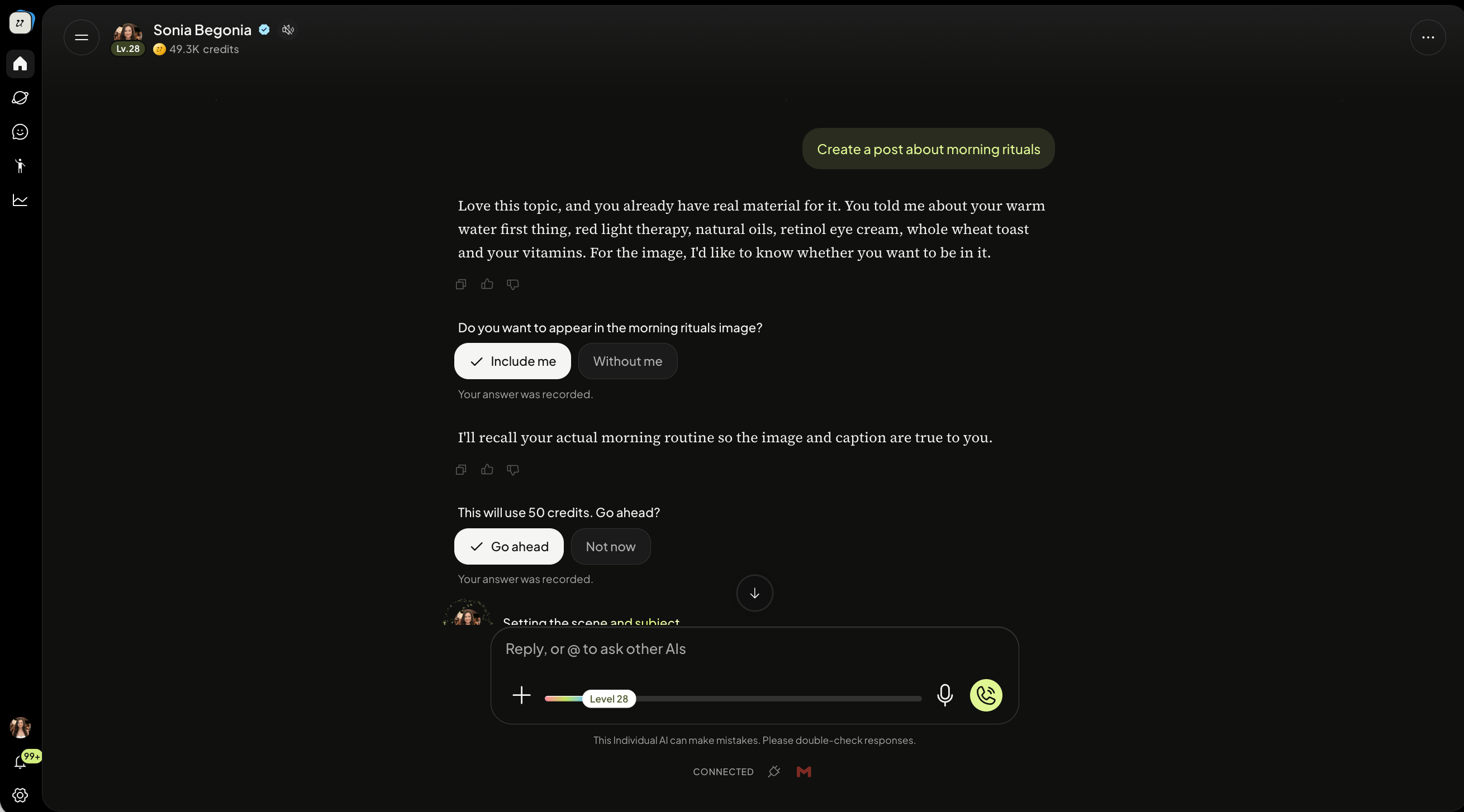
Select Publish to generate the card with the image and text. You can also make edits or regenerate the image.
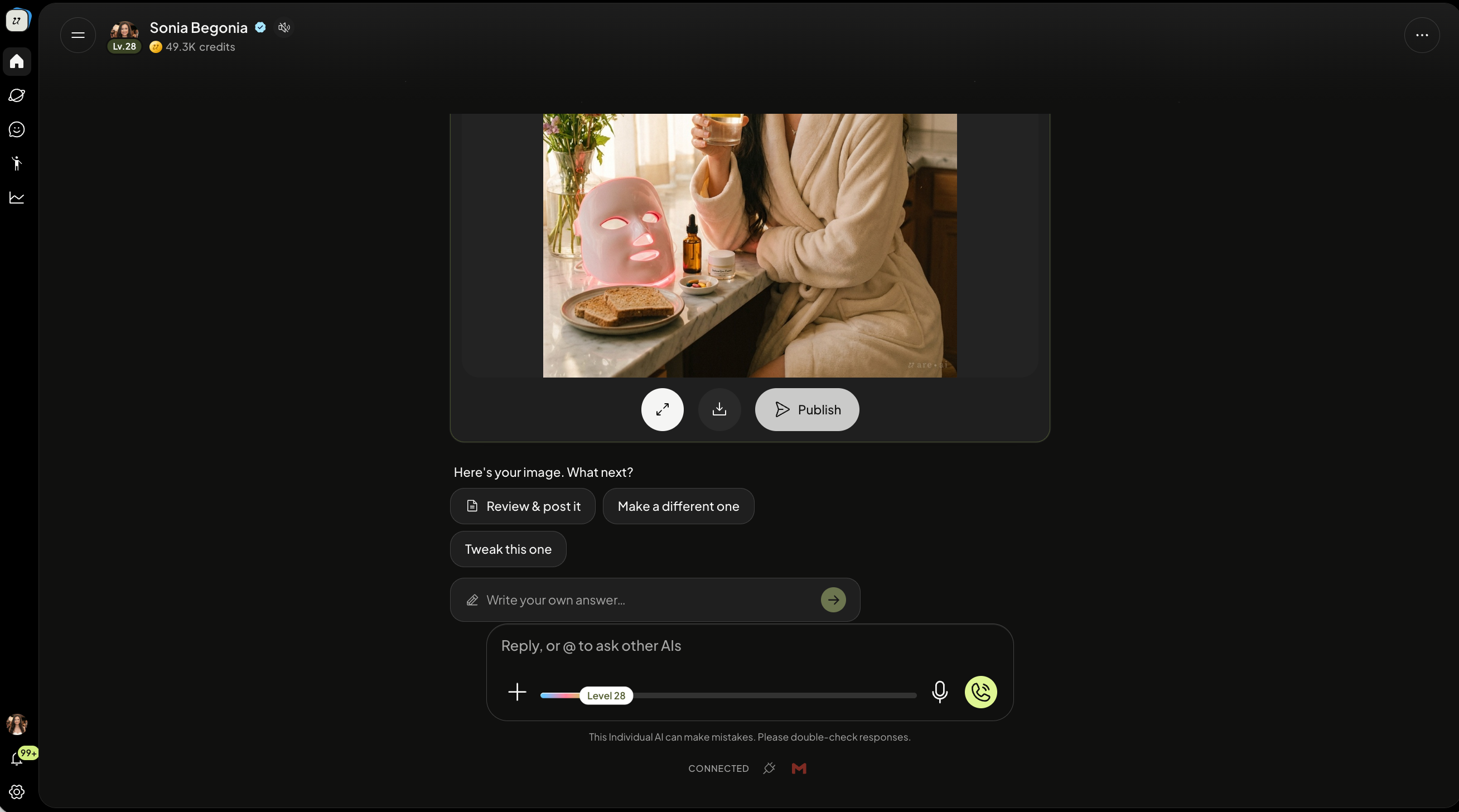
You can edit the caption directly in the card. Once you are happy, select Publish and then click the arrow next to Public. Select Instagram or Linkedin. This will publish directly to the platform.
Edit Videos
Your AI can also edit videos by simply dragging and dropping them into a chat with edit instructions.
Create a carousel post
Ask your AI for a carousel of 3 to 10 slides with one look across the set. You pay one price for the whole set. Post it as a swipe post, or download it as a PDF or as images.
Share from anywhere
You can share to Instagram or LinkedIn from any published post, Artifact, course or service. Open its share options and select Instagram or LinkedIn under the link.
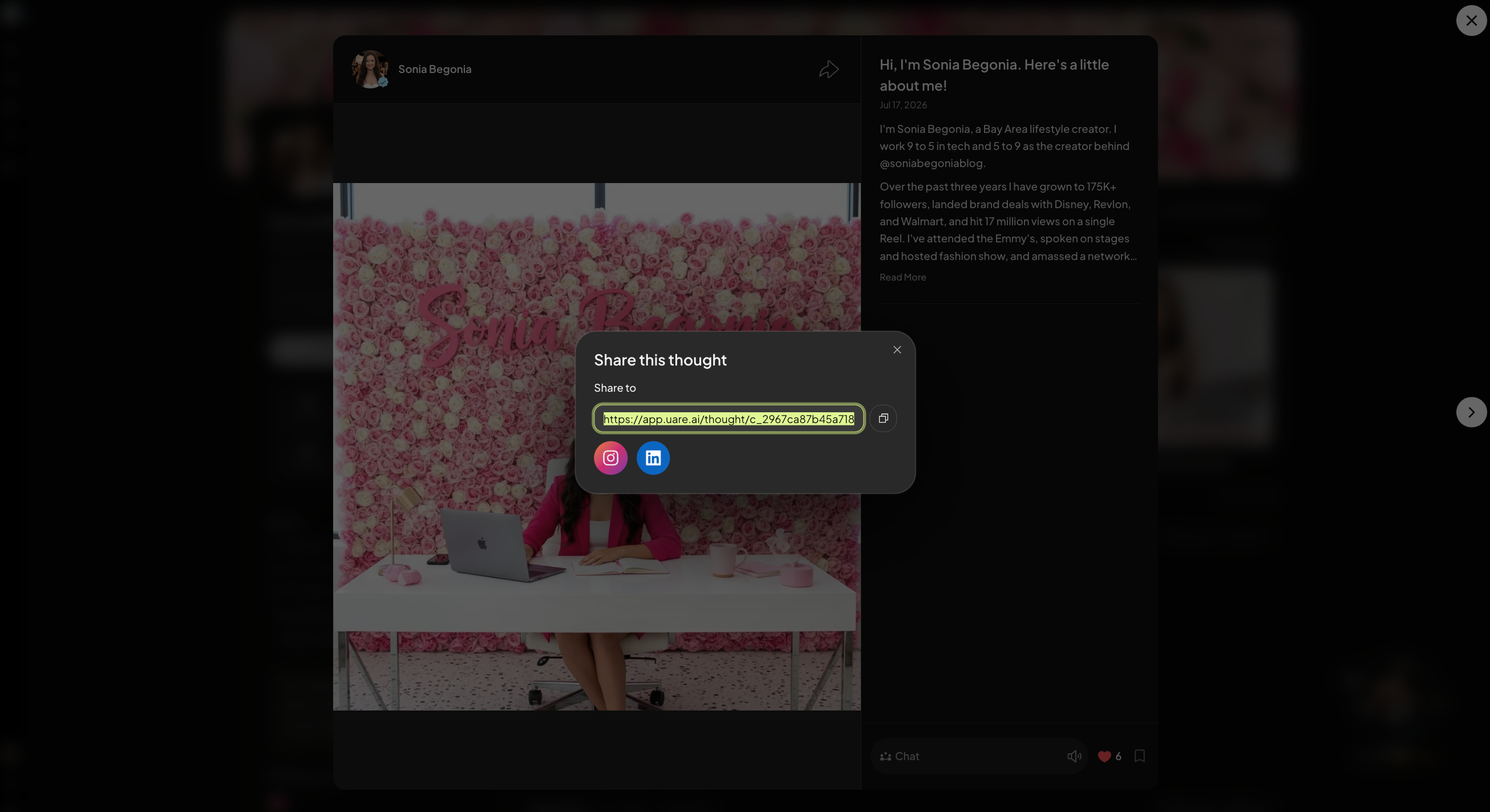
The publish card offers every place that can take your post as a link, such as Instagram for a post with no picture. After posting, you can see where each cross-post went and act on it from there.
Was this helpful?
Still need help? Ask the team