Create an Artifact
An Artifact is an interactive, living document you can store, edit, share, and even sell. An Artifact can be turned into an audiobook, e-book, or podcast, interactive and dynamically tailored to the reader/listener.
Get started
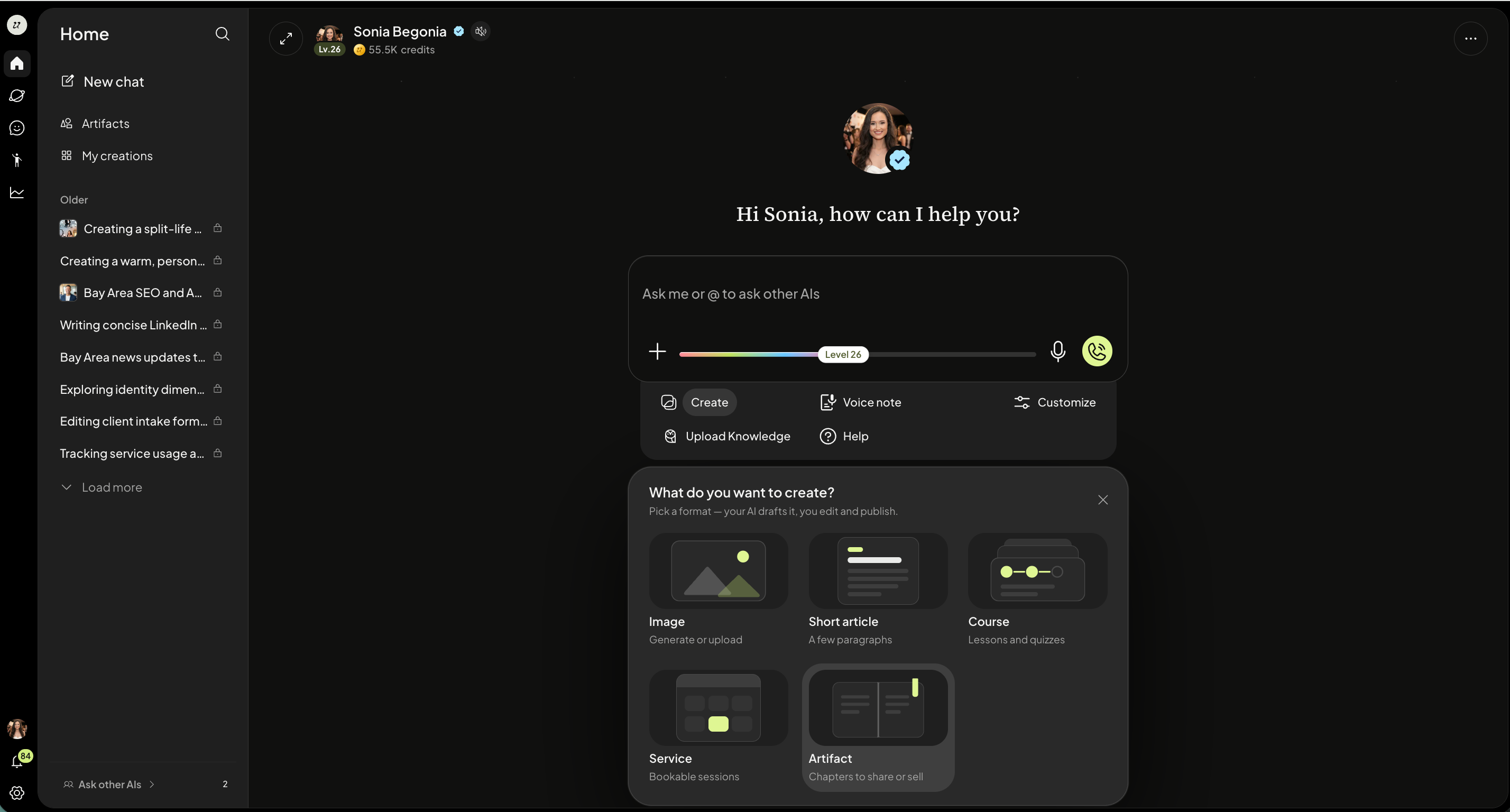
To create an Artifact, head to your Chat with me. Select Create and Artifact.
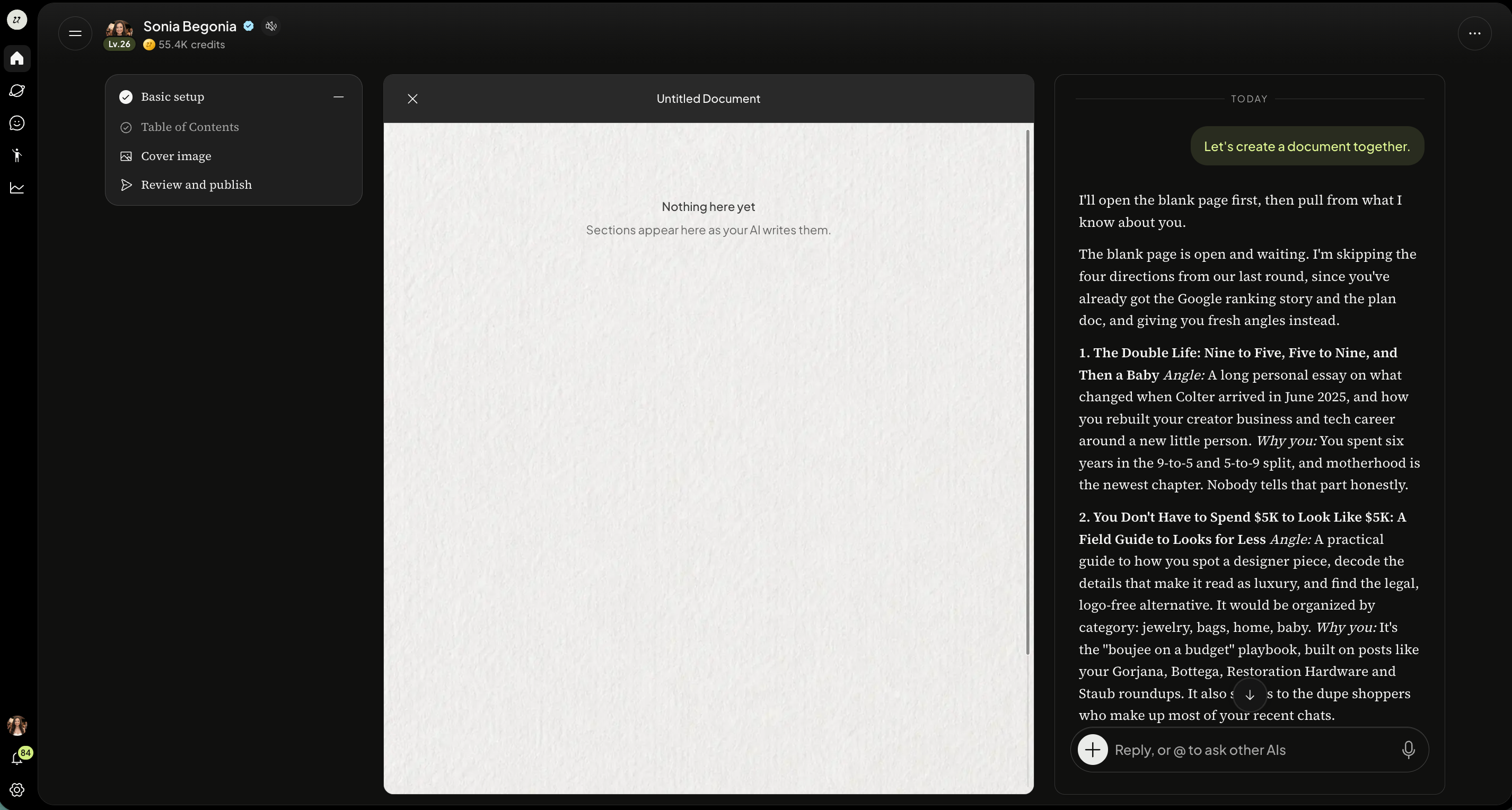
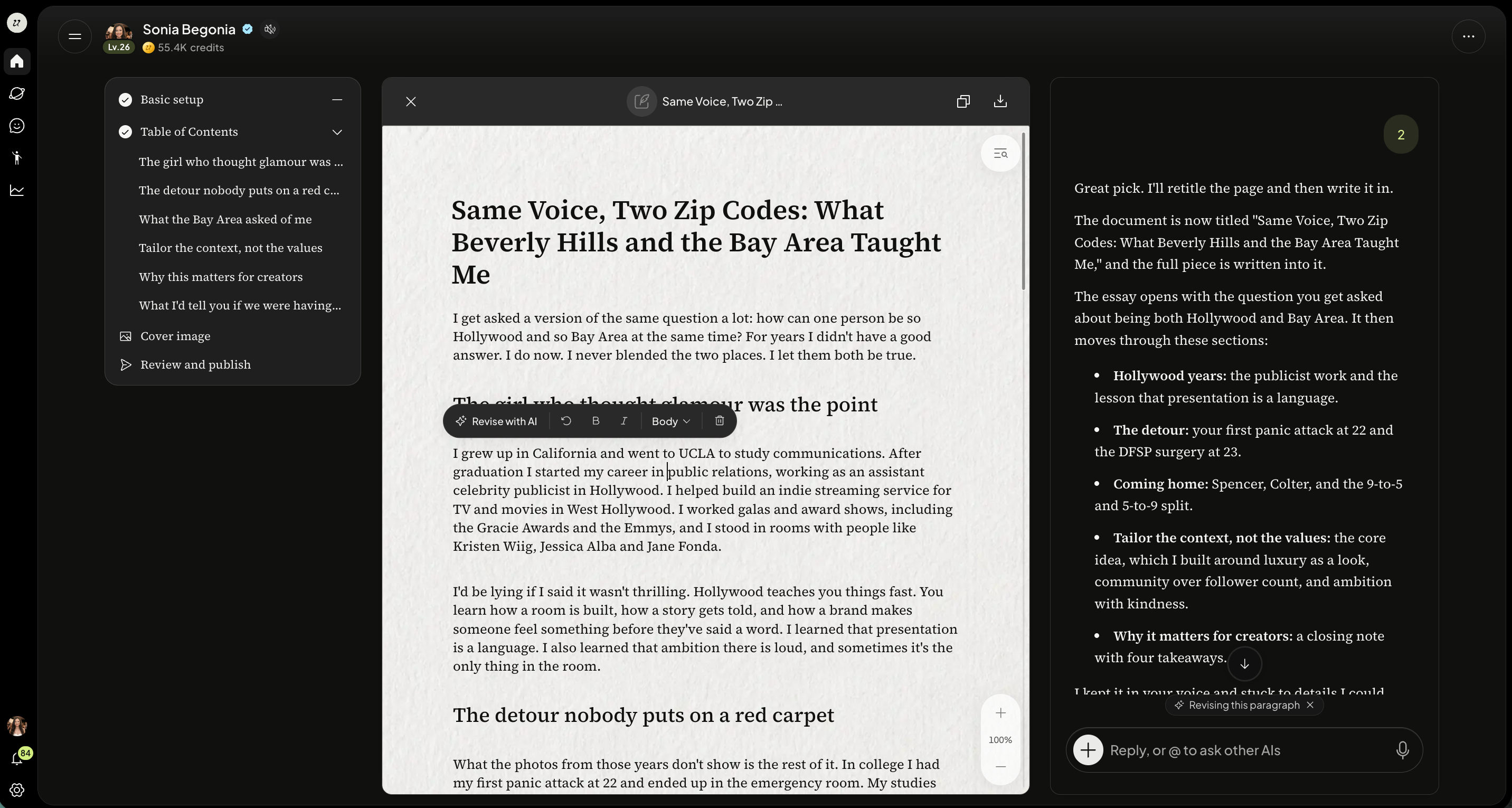
A screen will appear broken into three parts. The left hand side is the outline of the document, the middle is the document itself, and the right hand side is the chat.
Your AI will begin by proposing a few ideas for the Artifact. You can select one of the suggested or prompt your own.
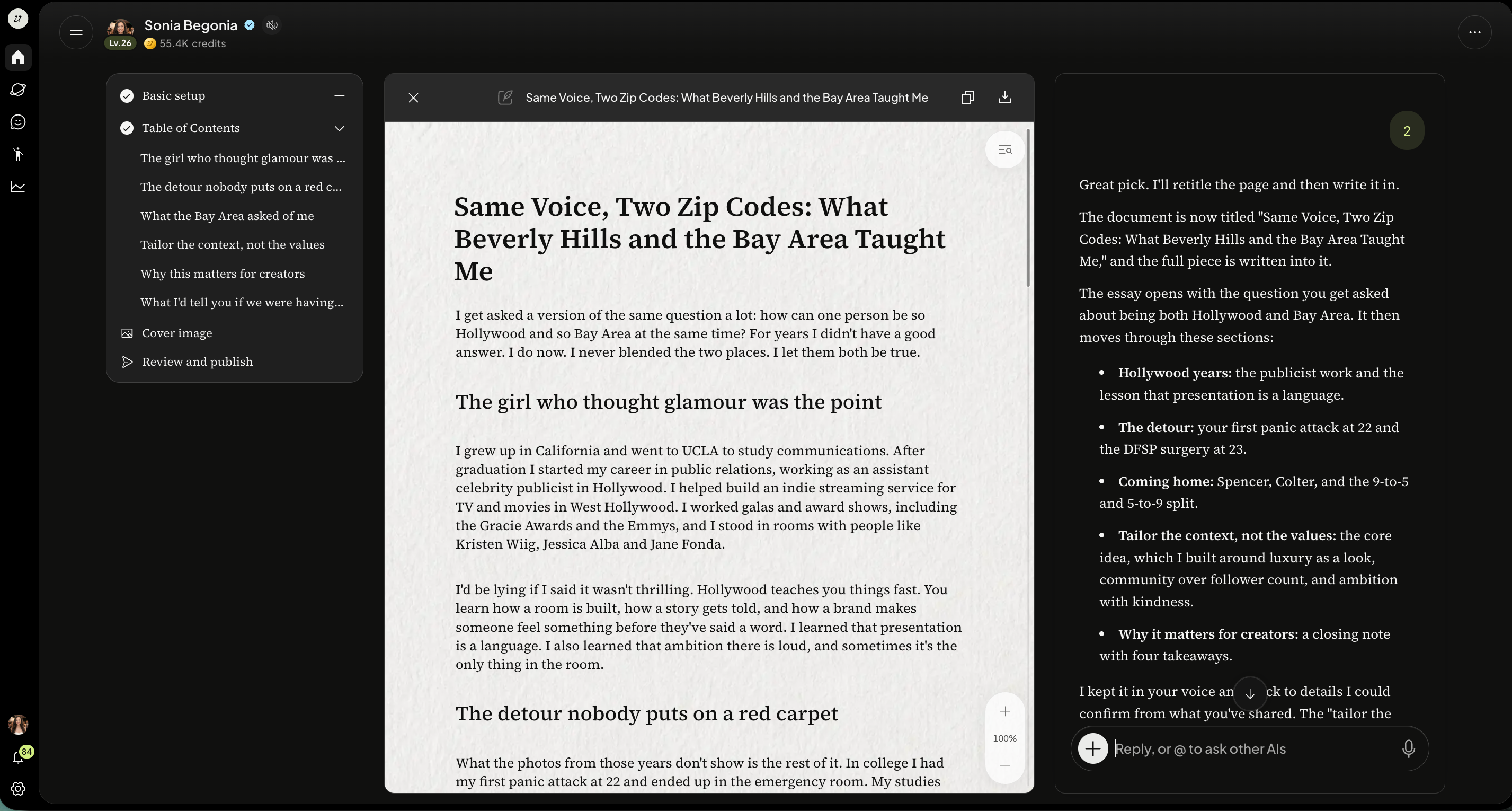
Once you confirm the topic of the guide, your AI will pull from your Knowledge Hub and create the document. You will see the sections, content, and chat populate.
Edit an Artifact
Edit the document content and it’s formatting in chat or directly within the Artifact by selecting the text and typing directly, or you can revise with AI.
Publish an Artifact
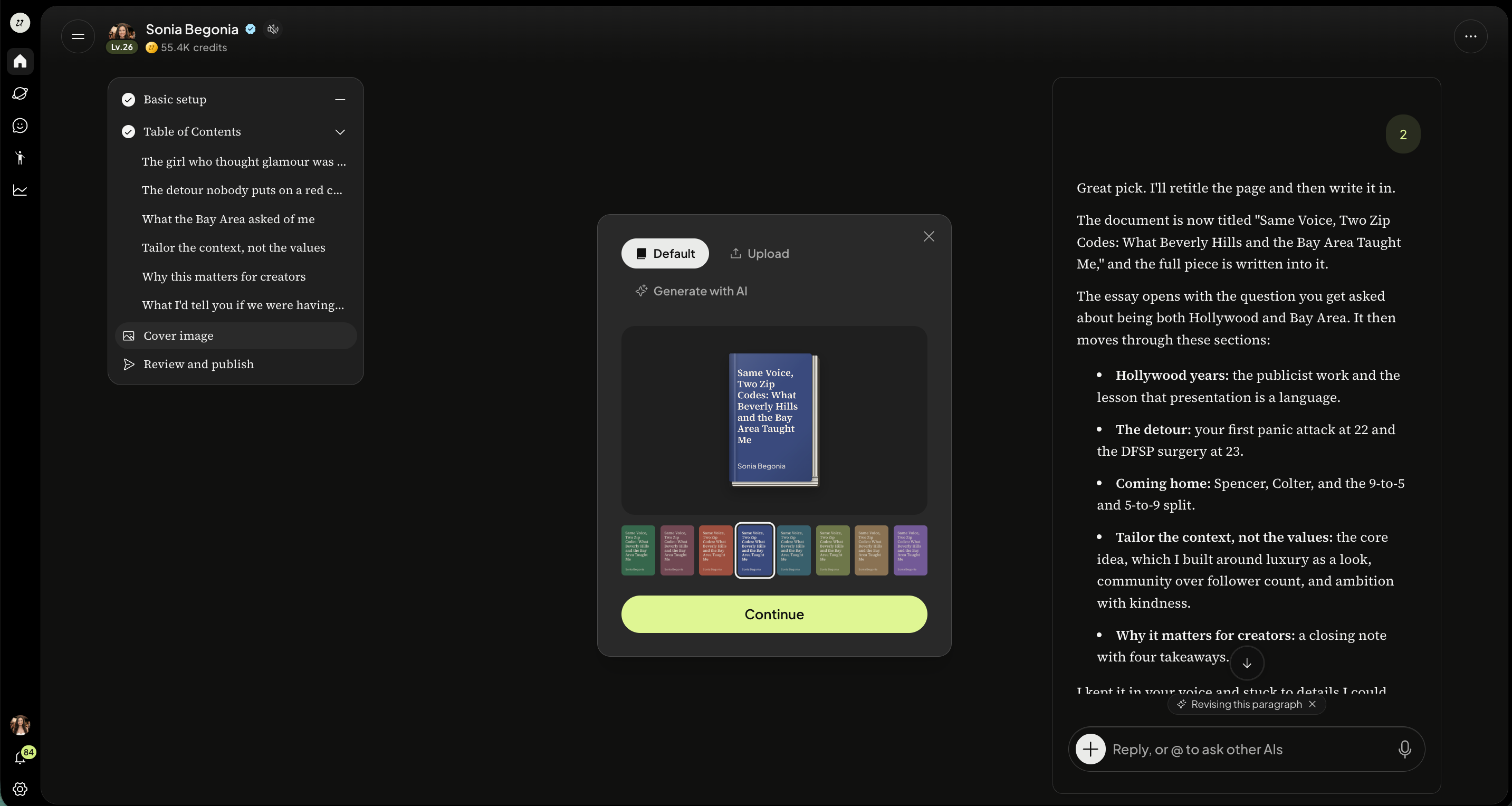
Once you have reviewed your Artifact, you will be asked to create a cover image. You can upload your own or generate with AI.
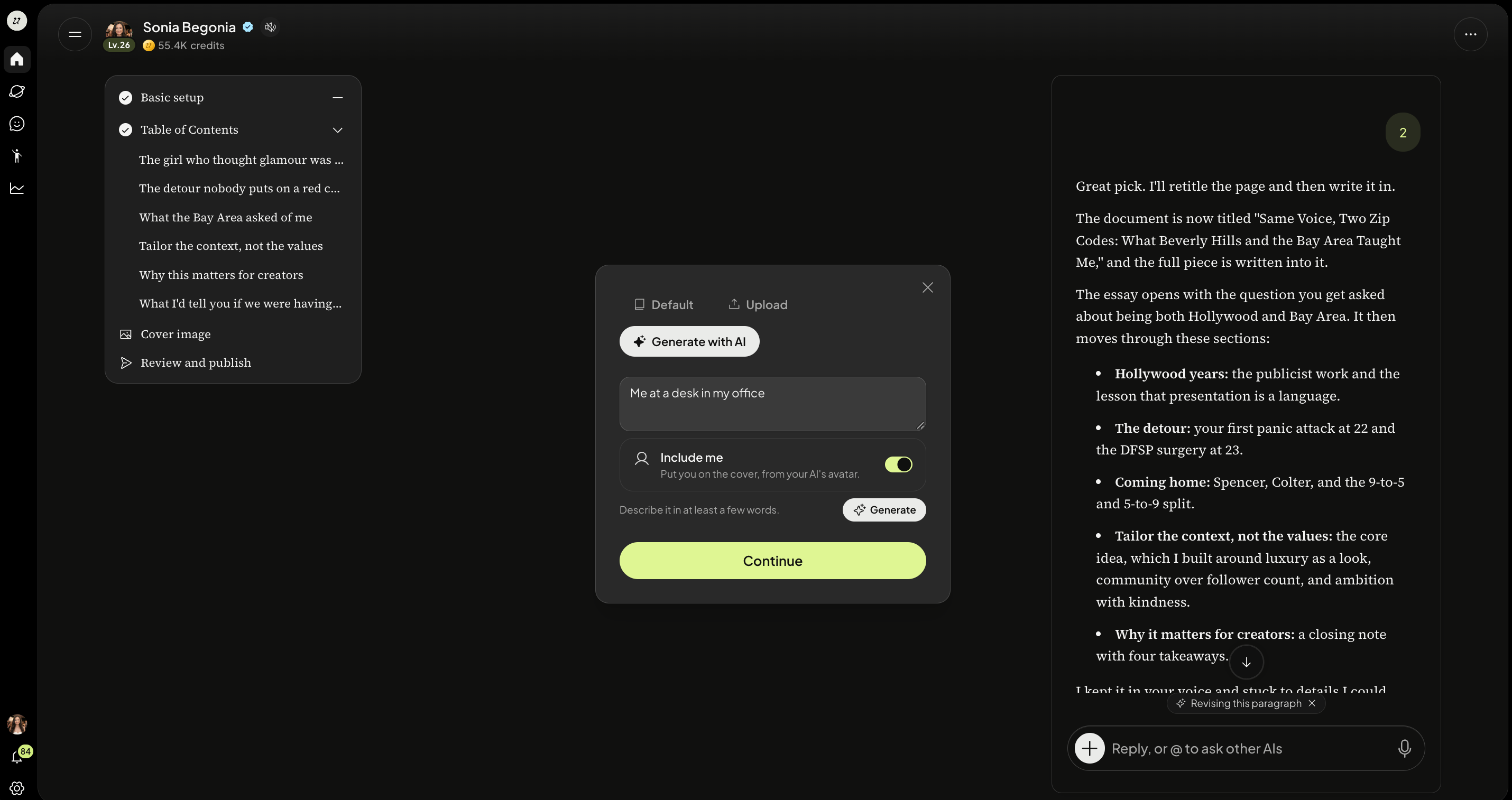
If you are generating with AI, select Generate. Once complete, click Continue.
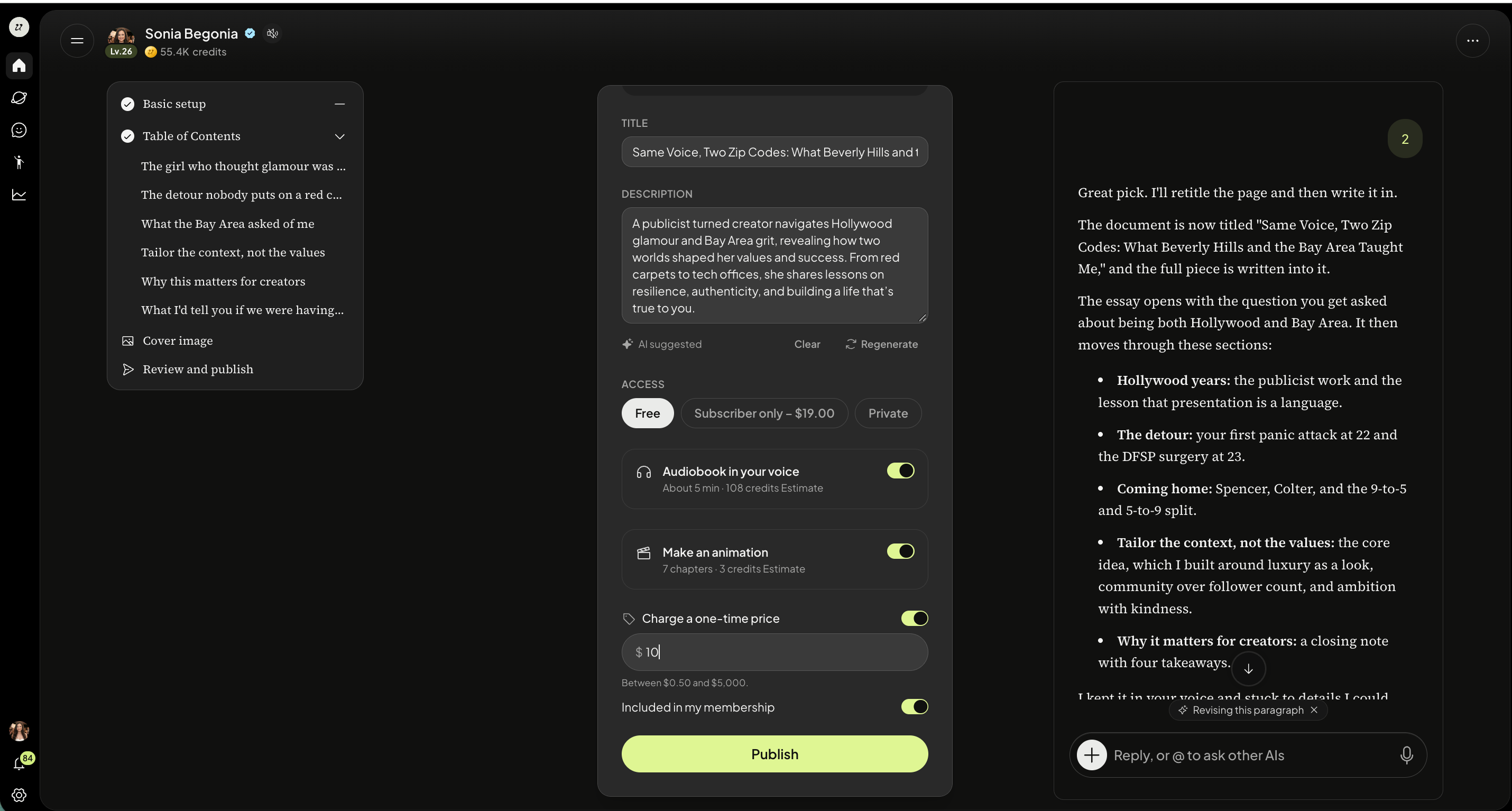
The last step is confirming the title, description, pricing (one time pricing and/or included in subscription) if you would like it to be an audiobook read in your own voice, and to use it to make an animation. Select Publish.
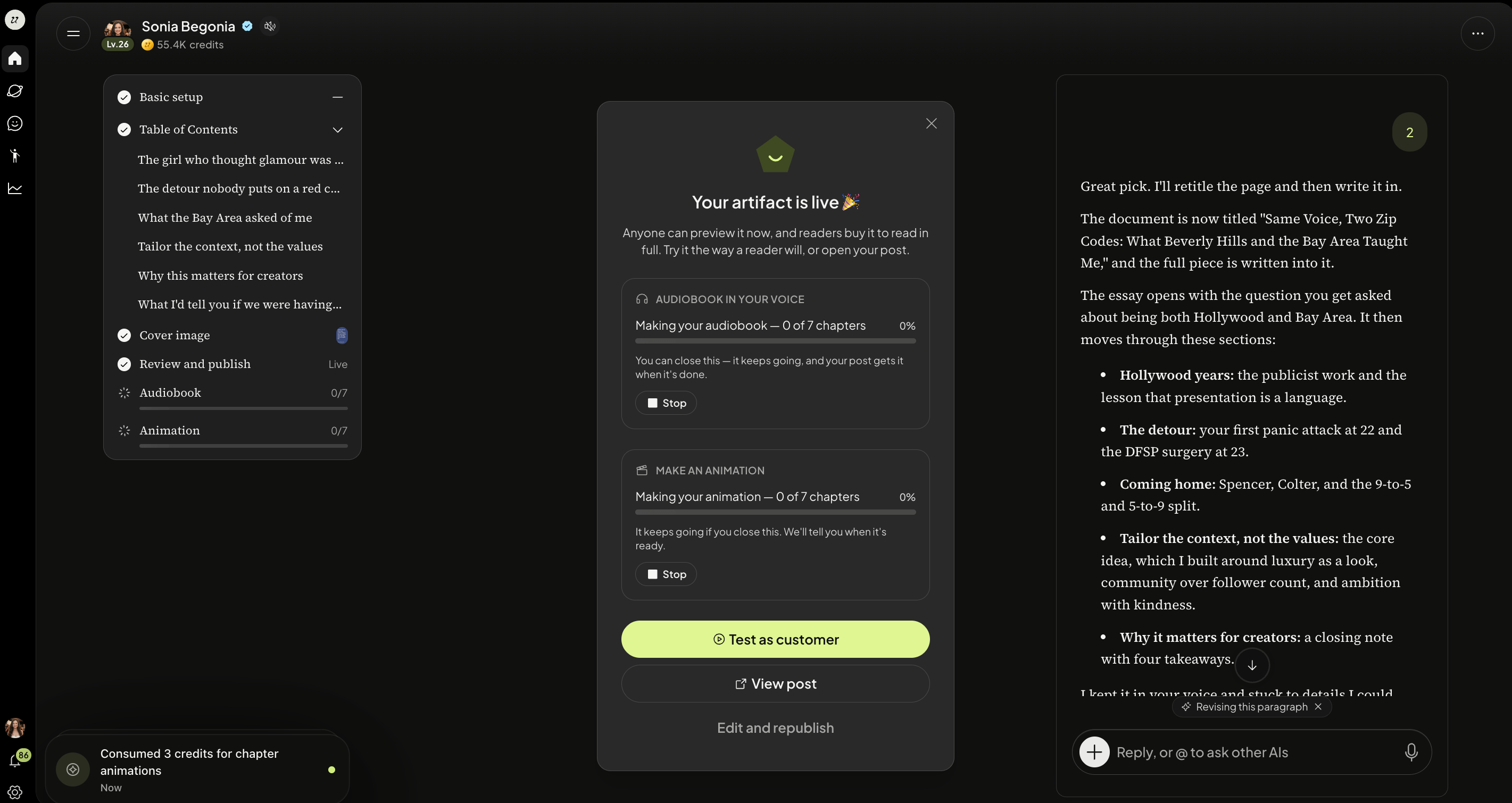
Once the Artifact is published, you are able to see the progress of transcribing the audio as well as creating the film. You will also be able to Test as Customer (data will not be saved), or you can go directly to View Post or Edit and Republish.
Import a document as an Artifact
You can turn a document you upload into an Artifact in one step.
After importing, ask your AI to tidy the Artifact. Tidying adds chapter headings and removes page numbers and running headers. Your words are left unchanged.
Illustrate an Artifact
Ask your AI to illustrate your Artifact.
Agree on a look using a sample picture.
Choose how many pictures you want and review the price before it starts.
Pictures sit behind the text. In illustrated chapters, pictures move with the narration and pages fade over the picture. Readers can use Watch mode to fill the screen with the picture and a caption, and drag the narration bar to jump ahead.
Make a film for a chapter
A published chapter can play as a short film: a moving scene that follows the narration line by line.
Make a film wherever you already make an audiobook. Watch it being made, and retry it if you don't like it. Making a film uses credits, and you see the cost before it starts. If a film fails, the credits held for it are released.
Choose the audiobook sound level
Choose a sound level for each book: none or subtle.
Was this helpful?
Still need help? Ask the team