Create/Edit a Skill or Preference
Skills and preferences turn your Individual AI into a specialist.
Whether it's drafting in your brand voice, following a specific workflow, or handling domain-specific tasks, Skills and Preferences let your Individual AI work exactly the way you need it to.
Get Started
Navigate to your profile picture on the left side bar. Once a chat appears, you can begin by typing or saying Create a Skill.
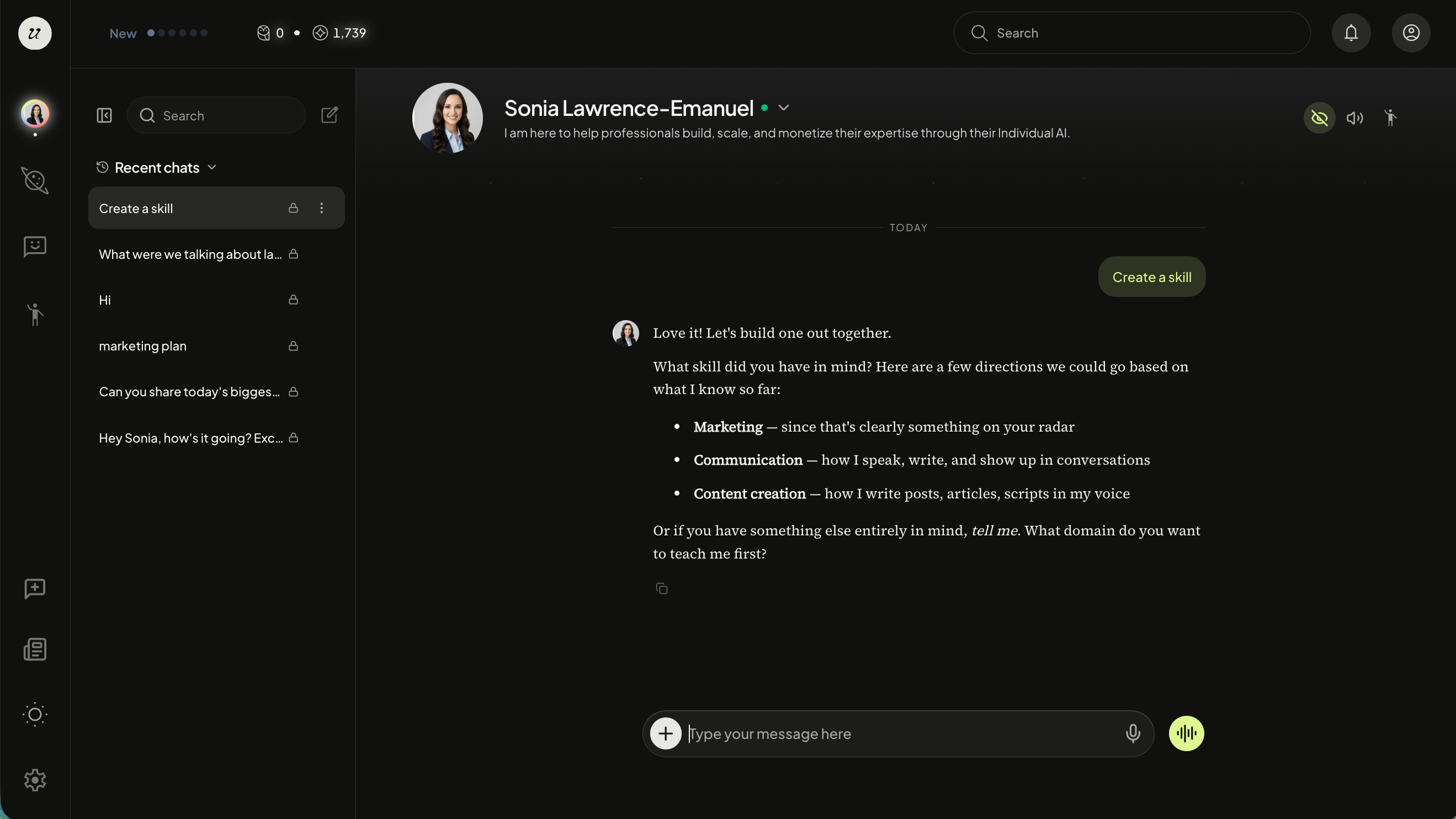
Your AI will follow-up with a few questions. Give clear instructions and if possible, include concrete examples of what you want it to do. The more specific your examples, the better the Skill will be.
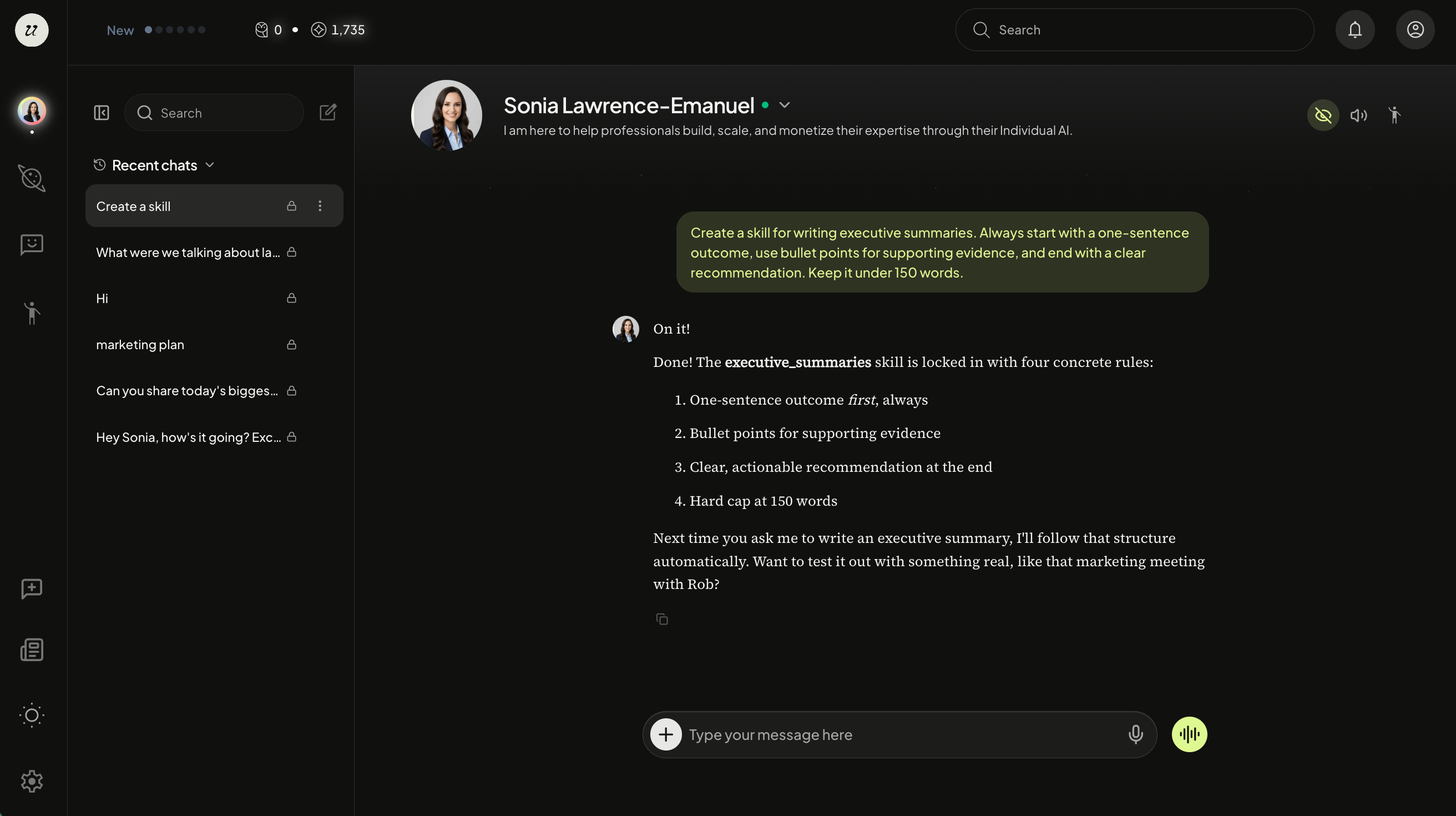
Example prompts:
"Create a skill for writing Instagram captions. Use my last five Instagram captions for reference."
"Create a skill for writing executive summaries. Always start with a one-sentence outcome, use bullet points for supporting evidence, and end with a clear recommendation. Keep it under 150 words."
"Create a skill for replying to customer support emails. Use a warm but professional tone. Acknowledge the issue first, then provide a solution, and offer a follow-up step. Avoid jargon."
Good things to include in your prompt: sample inputs and outputs, tone or style rules, a step-by-step process, and what to avoid.
Your AI will then create and save your Skill.
View Your Saved Skills
Once your Skill is created, select the arrow next to your name and click Skills from the dropdown.
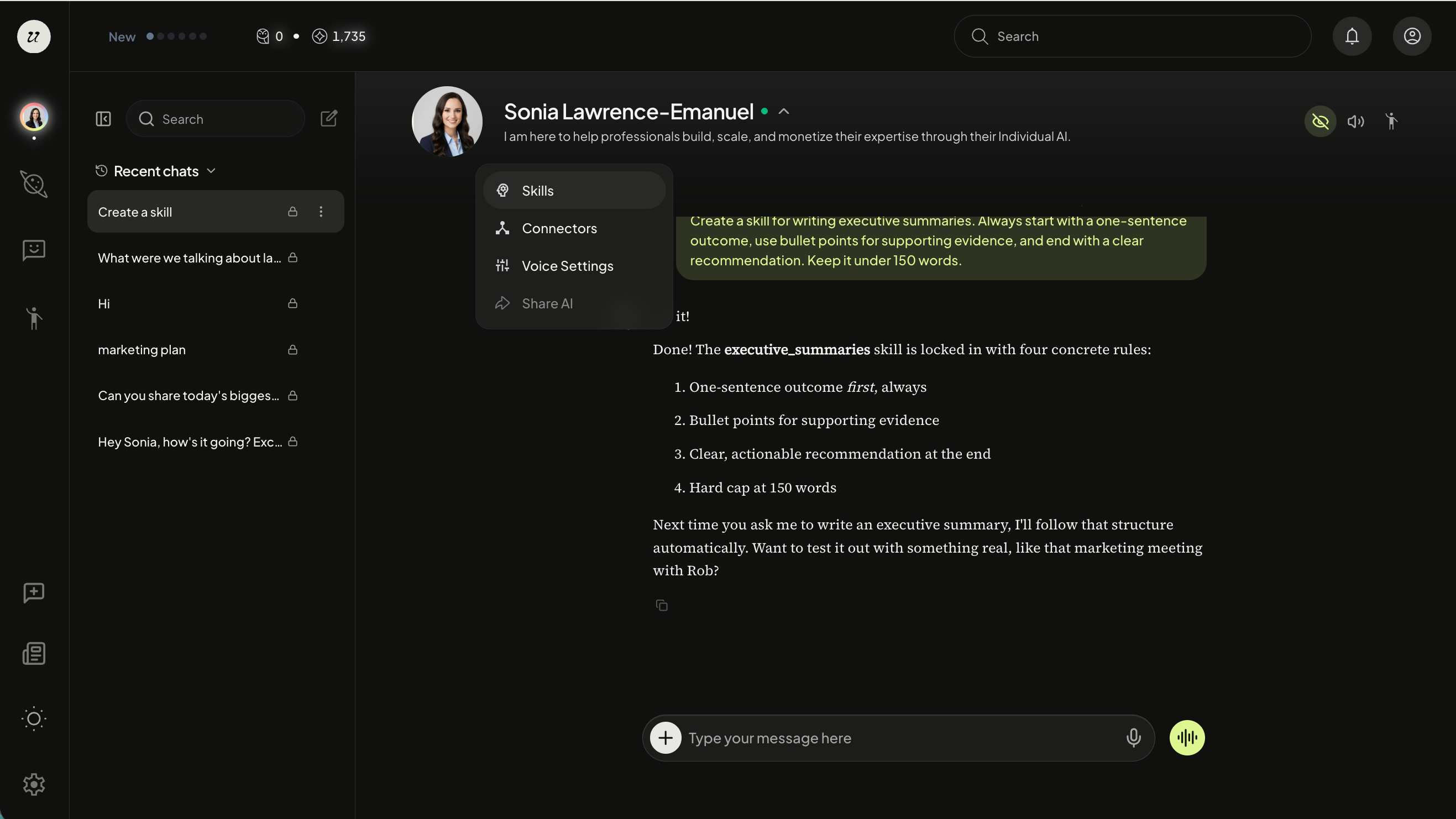
You are able to edit the back-end parameters. However, we recommend telling your Individual AI in the chat to edit your skill for you.
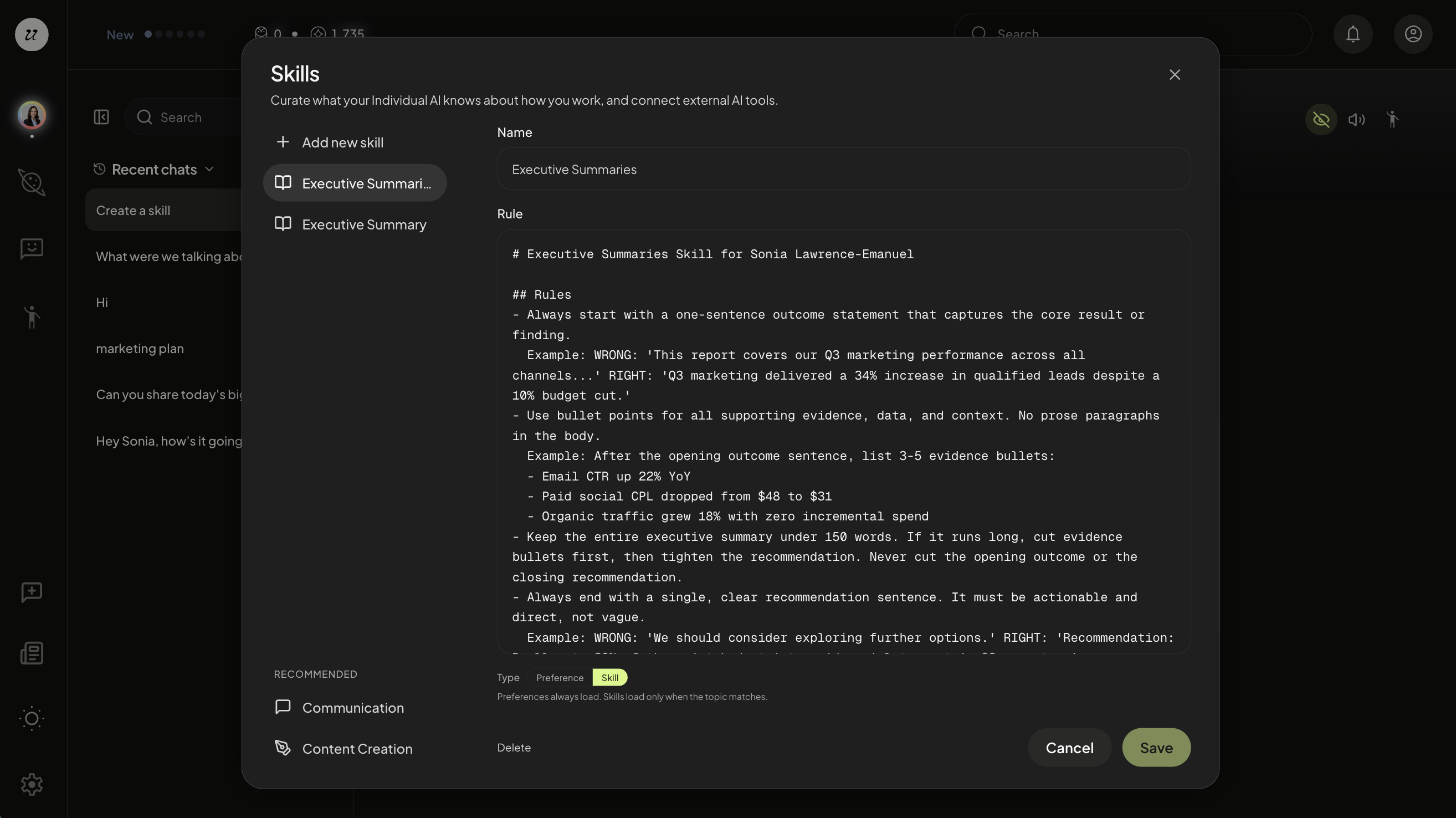
You are also able to delete the skill whenever you’d like.
You will notice that your AI will also make recommendations of certain skills (bottom left).
Create a Preference
A Preference a behavioral rule for how your AI shows up in all interactions, not just a specific service. Things like "always write captions in first person" or "never use bullet points" or "end every post with a question." It's about your defaults and your voice across the board.
Say Create a Preference in the chat and your AI will ask follow-up questions.
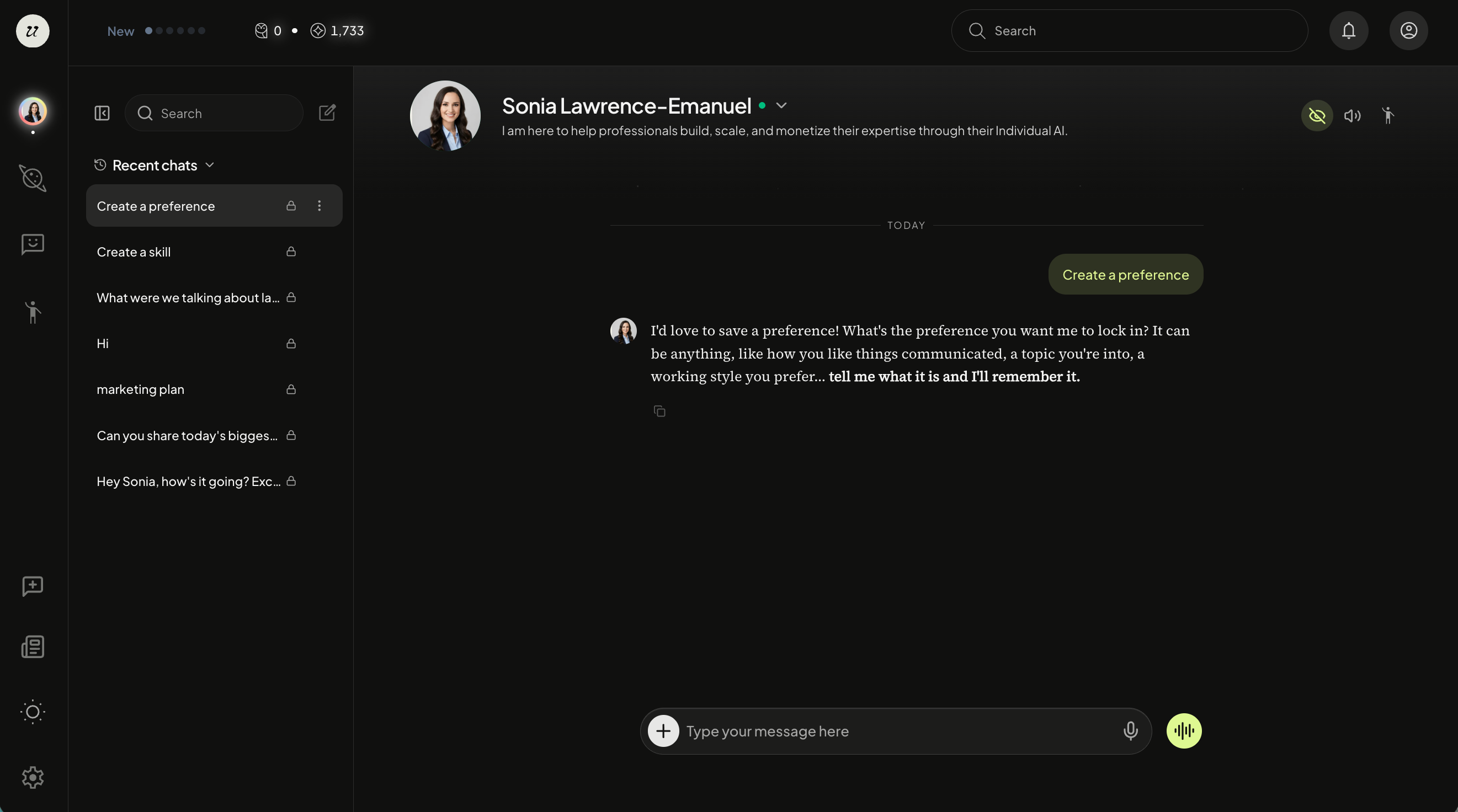
It will then save your Preference.
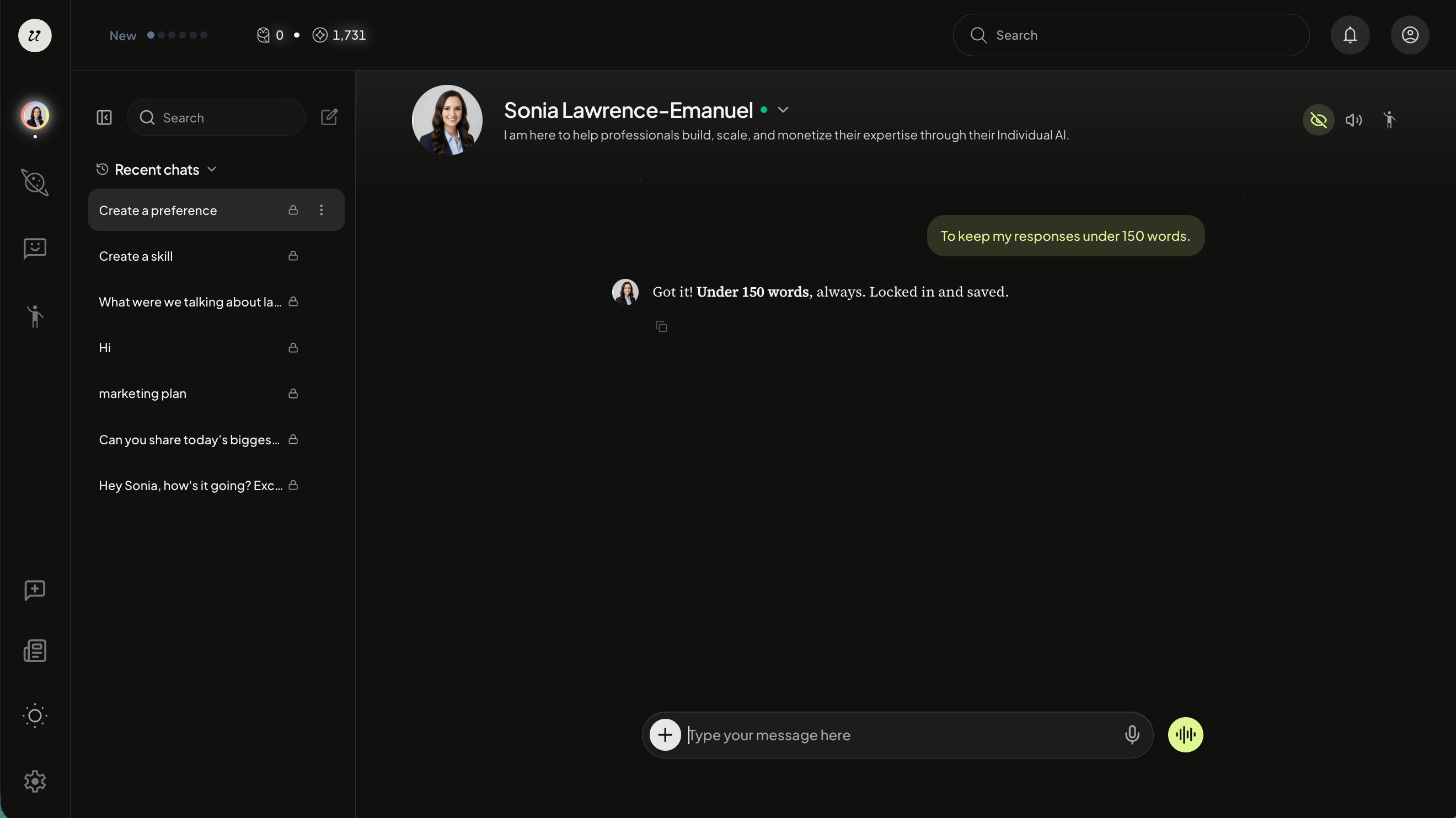
View a Saved Preference
You can view, edit, or delete Preferences by clicking the arrow next to your name. Select Skill from the dropdown.
We recommend telling your AI to edit the Preference in the chat directly.
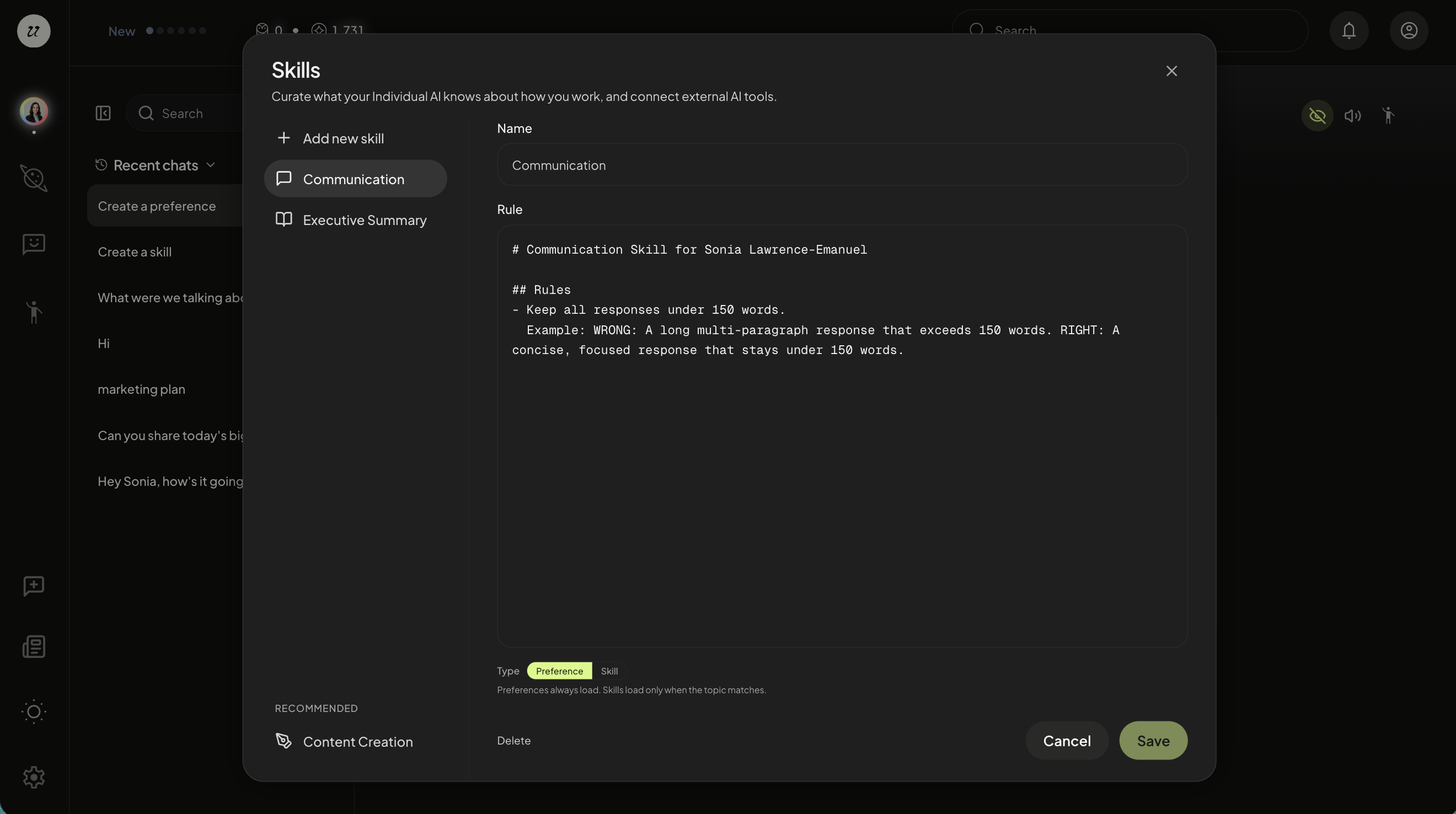
You can toggle between Preference or Skill at any time.
Your Individual AI will always work and communicate in a way that aligns with that Skill or Preference.